
StormDNS is a DNS-tunnel VPN that carries your traffic inside DNS queries, so it can get through networks that block normal VPNs. This guide shows you how to activate it in the portal and connect on Android using the free WhiteDNS app.
What you need
- An active PremierVPN VPN plan
- An Android phone or tablet
- The WhiteDNS app (Step 2)
Step 1: Activate StormDNS in the portal
- Sign in to the portal and go to Anti-Censorship › StormDNS.
- Click Activate on a server. You can be active on several servers at once, which gives you a fallback.
- The server now shows your Hostname, Encryption Key, Server IP and DNS Resolver, each with a Copy button. Keep this page open.
Your hostname and key are tied to your account. Don't share them: shared details are blocked automatically.
Step 2: Install WhiteDNS
- Download the latest APK from the WhiteDNS releases page on GitHub.
- Open the file. If Android asks, allow your browser or file manager to install unknown apps, then tap Install.
Step 3: Create a connection profile
Open WhiteDNS and go to the Profiles tab.
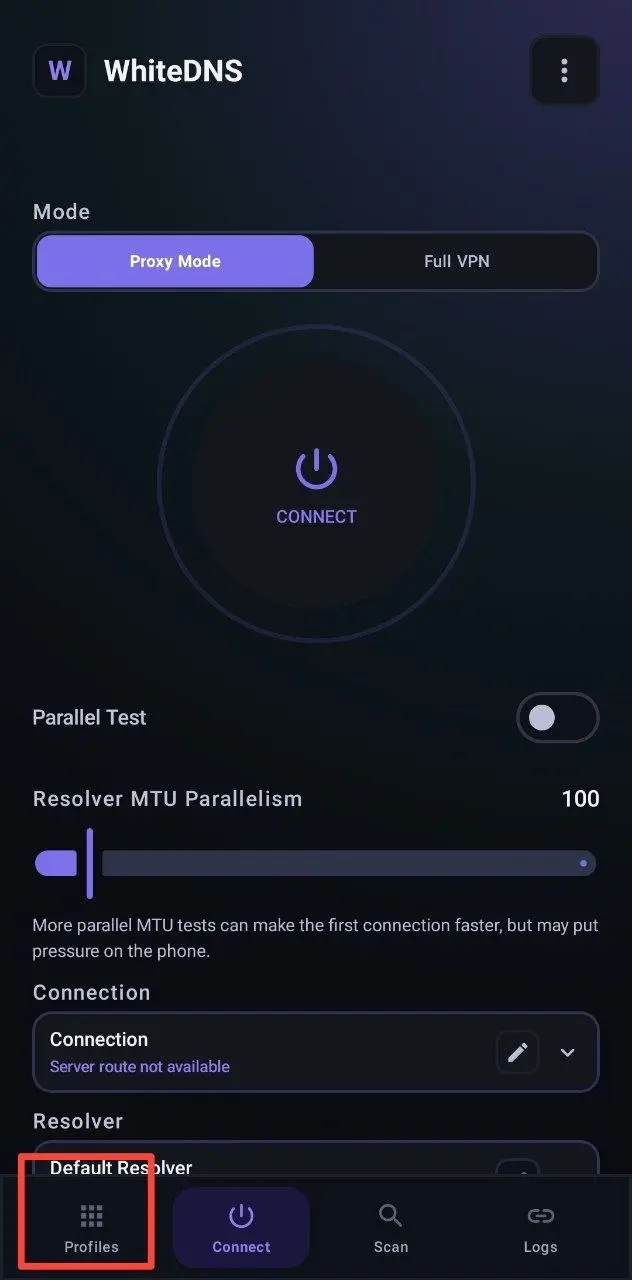
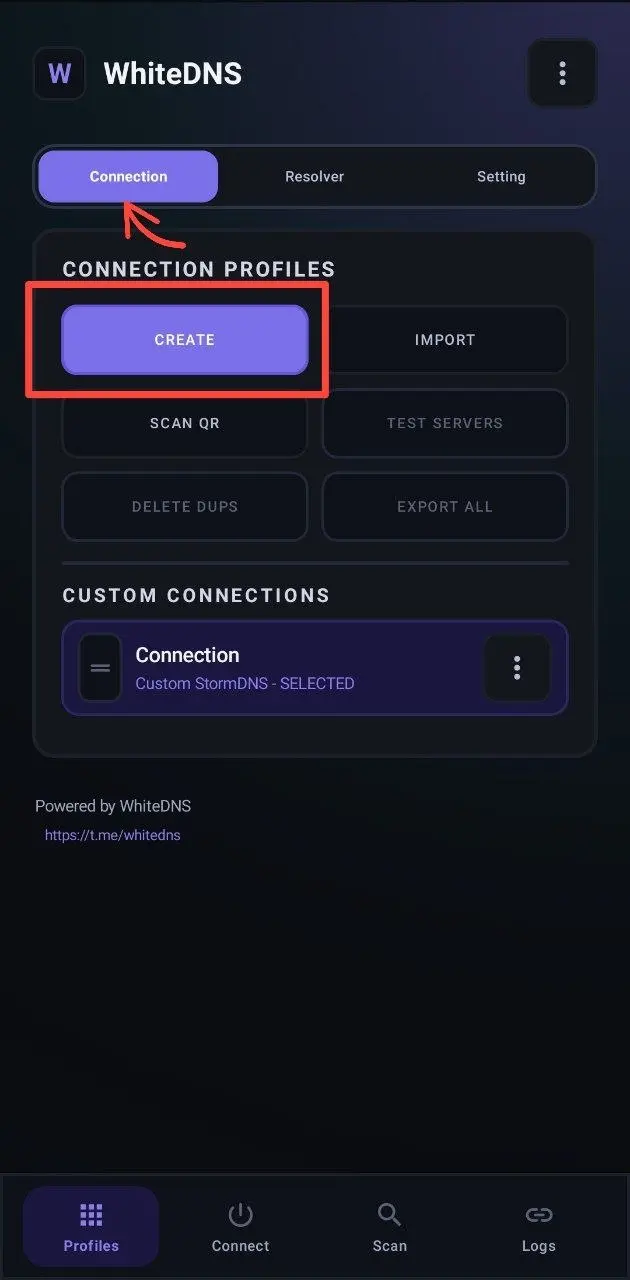
Under Connections, tap CREATE.
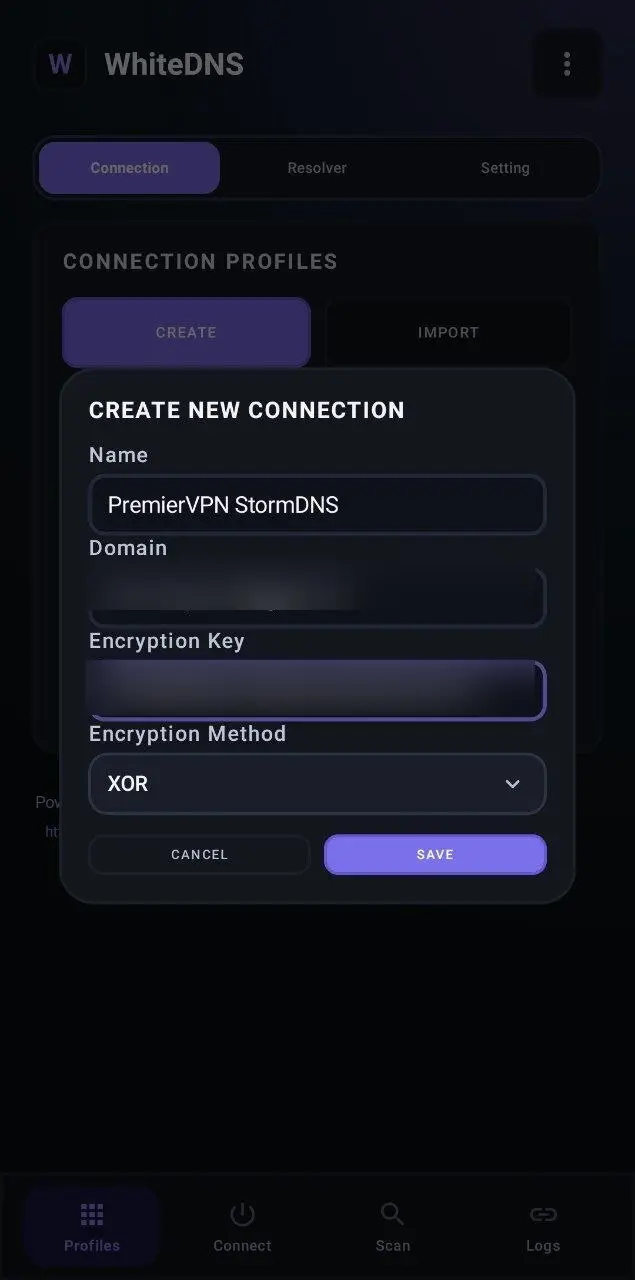
Fill in the fields:
- Name: anything you like, for example "PremierVPN StormDNS".
- Domain: paste your Hostname from the StormDNS page.
- Encryption Key: paste your Encryption Key from the same page.
- Encryption Method: set this to XOR.
Then tap SAVE.
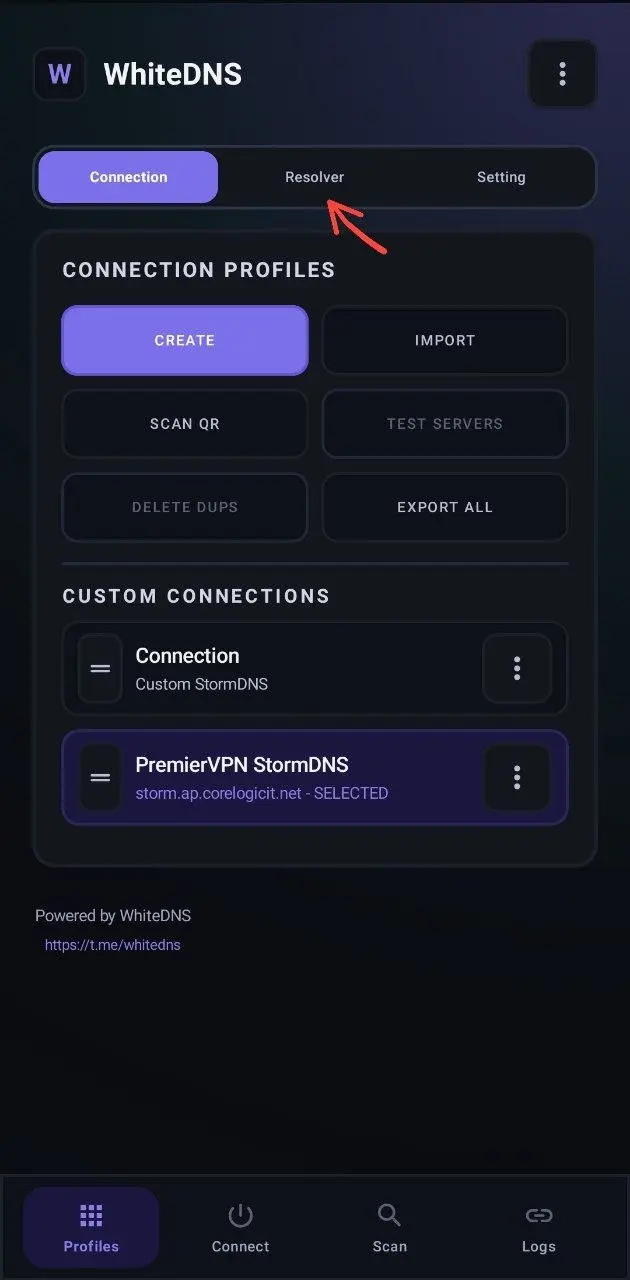
Step 4: Add DNS resolvers
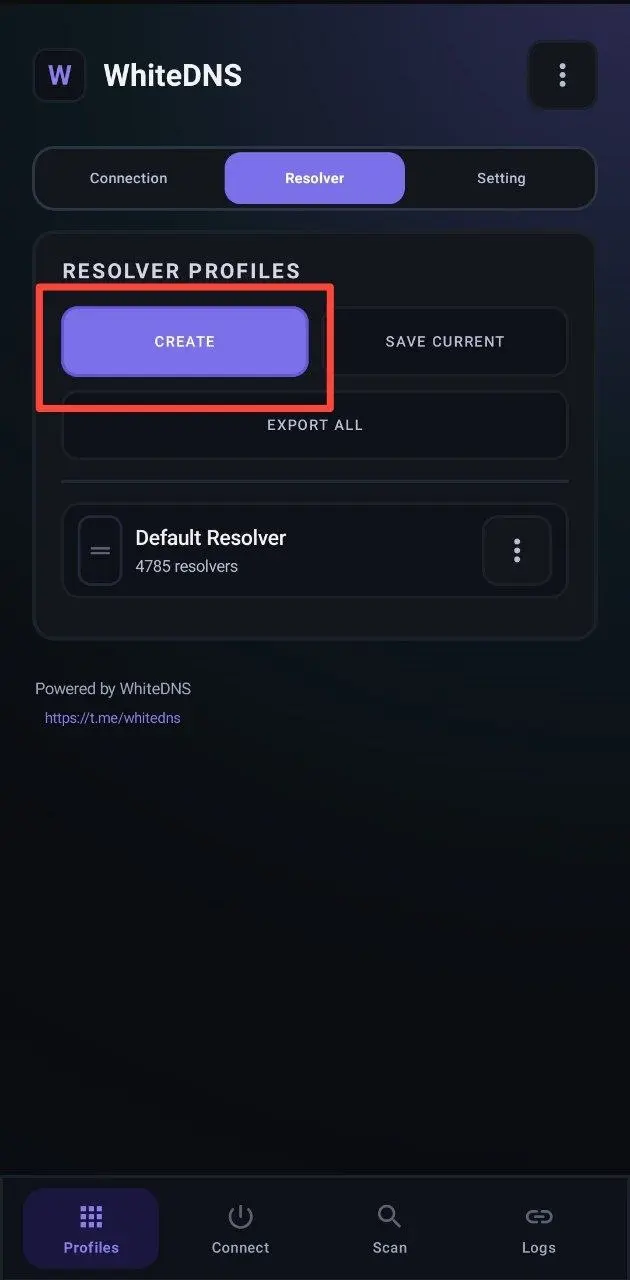
Your profile is created. Now tap Resolver.
Tap CREATE to add a new resolver list.
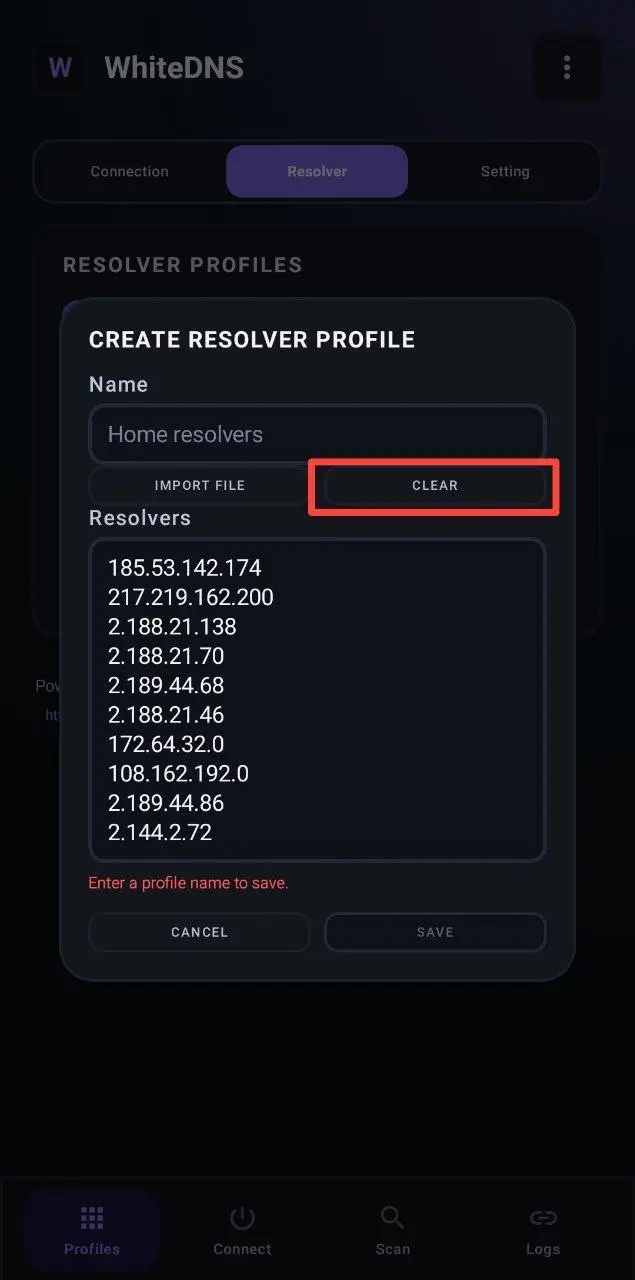
Tap CLEAR to remove the default resolvers.
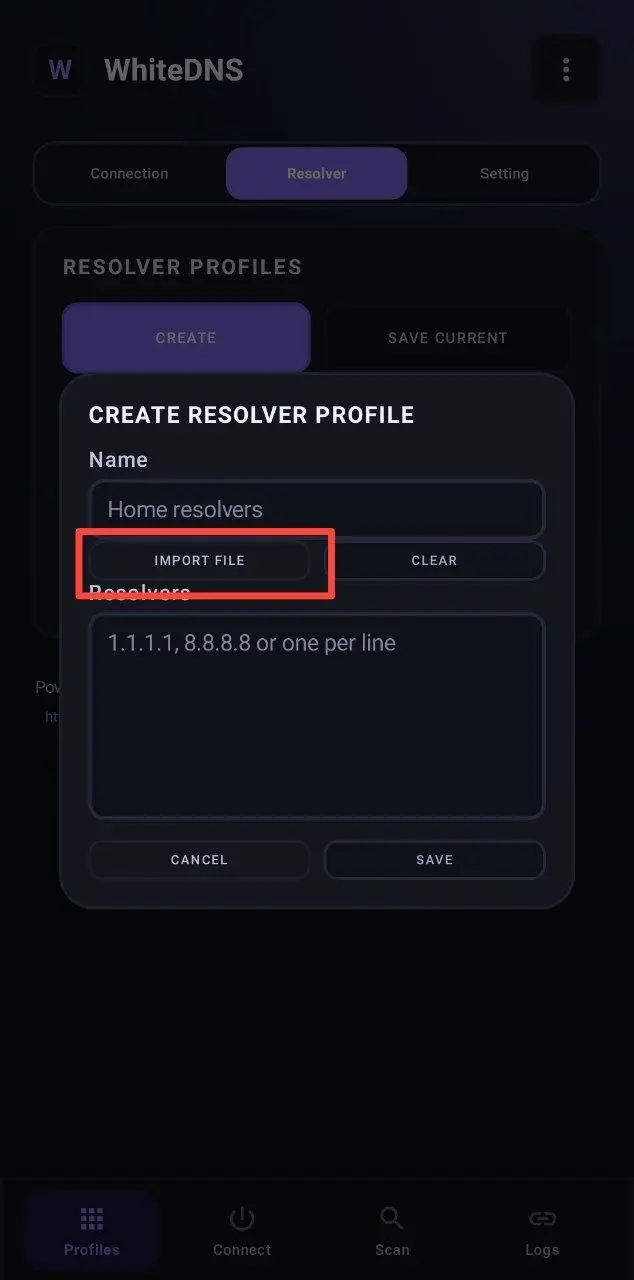
Now add resolvers that work in Iran. Either:
- Download the latest verified list from the iran-resolvers project on GitHub, then tap IMPORT FILE and select it, or
- In the portal, go to Anti-Censorship › StormDNS › Iran Resolvers, tap Copy All and paste the list in. This is the same source, refreshed every 6 hours.
Give the resolver list a name and tap SAVE.
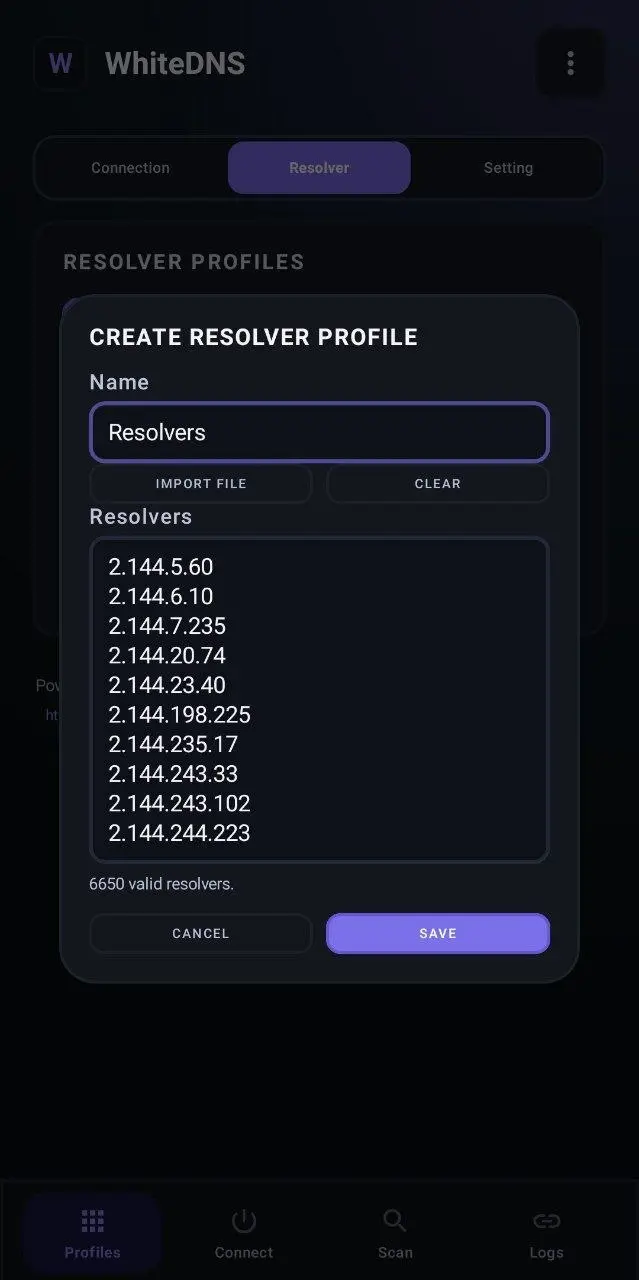
Your resolvers are added. Go back to the Connect tab.
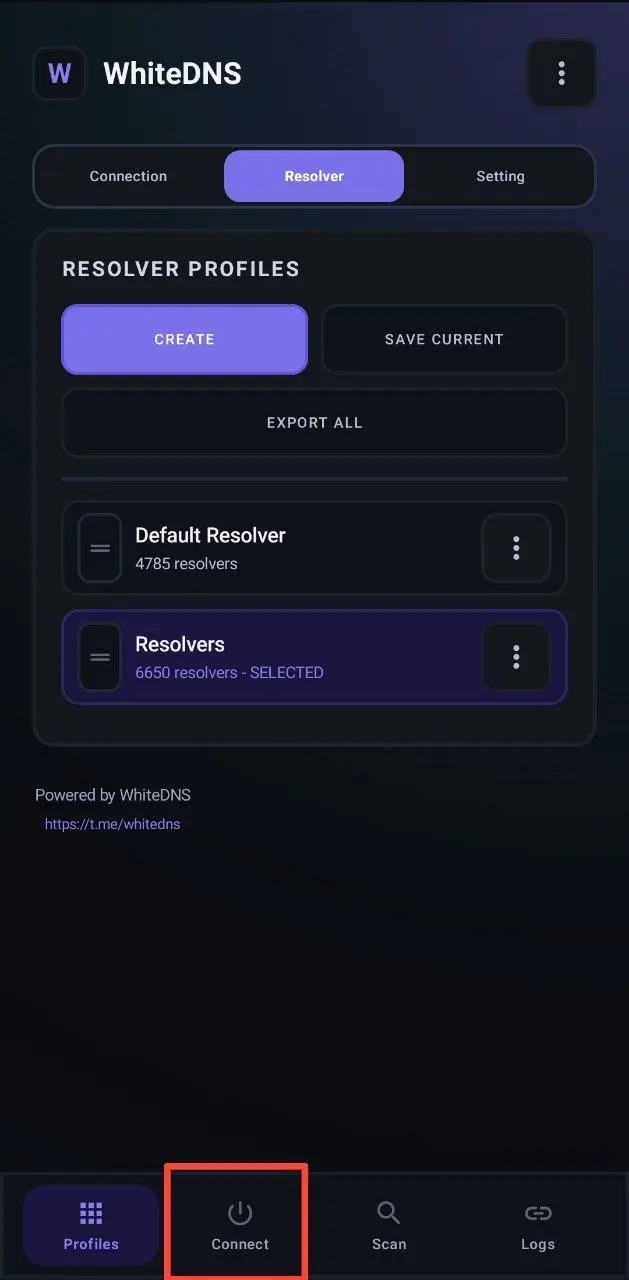
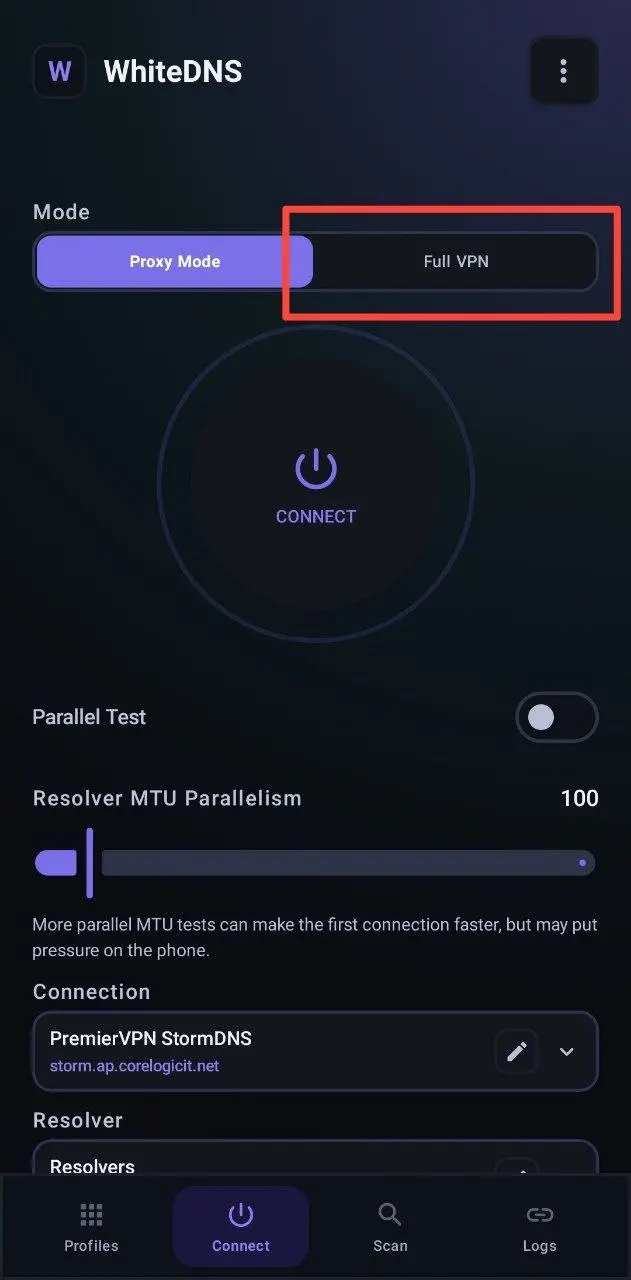
Step 5: Connect
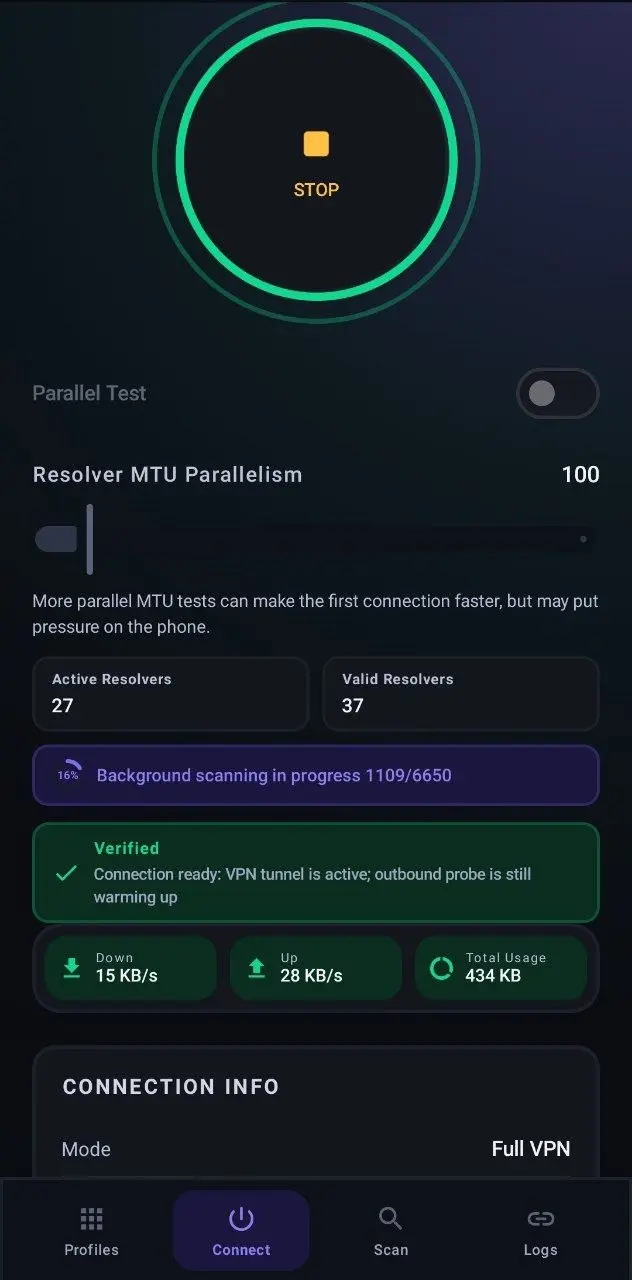
Select Full VPN to send all your device's traffic through StormDNS, then tap CONNECT.
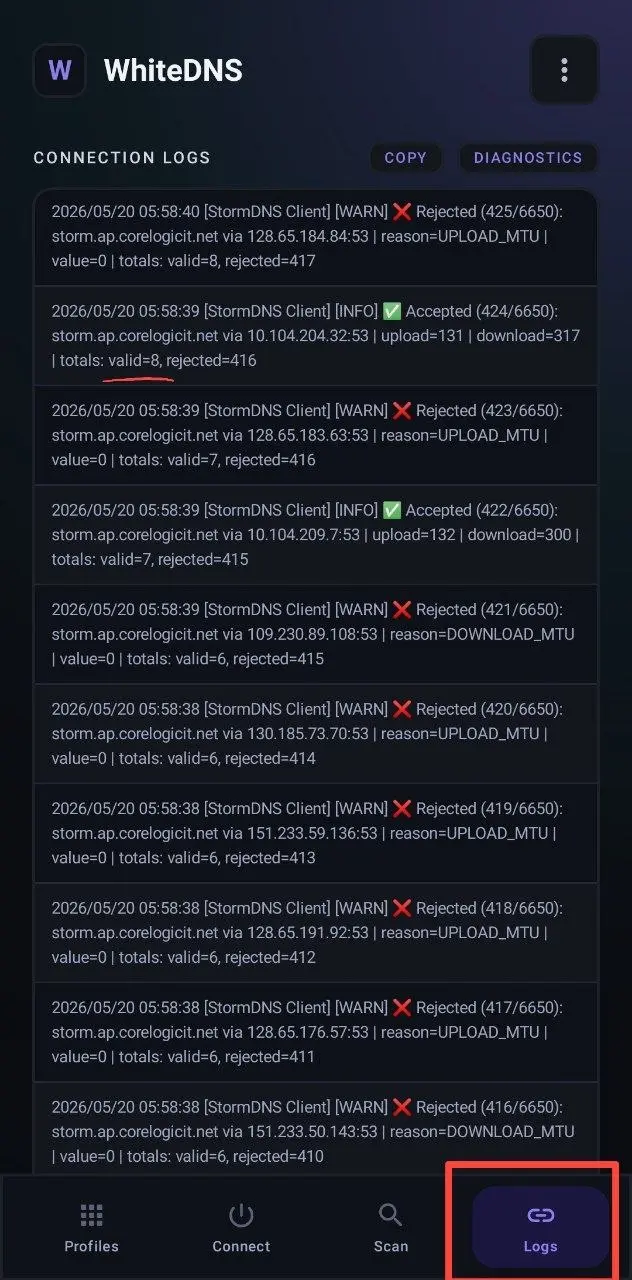
WhiteDNS now tests the resolvers to find ones that work. This can take a few minutes. You can follow progress in the Logs tab: lines with a green tick are working resolvers.
Once it has found enough working resolvers, the connection starts.
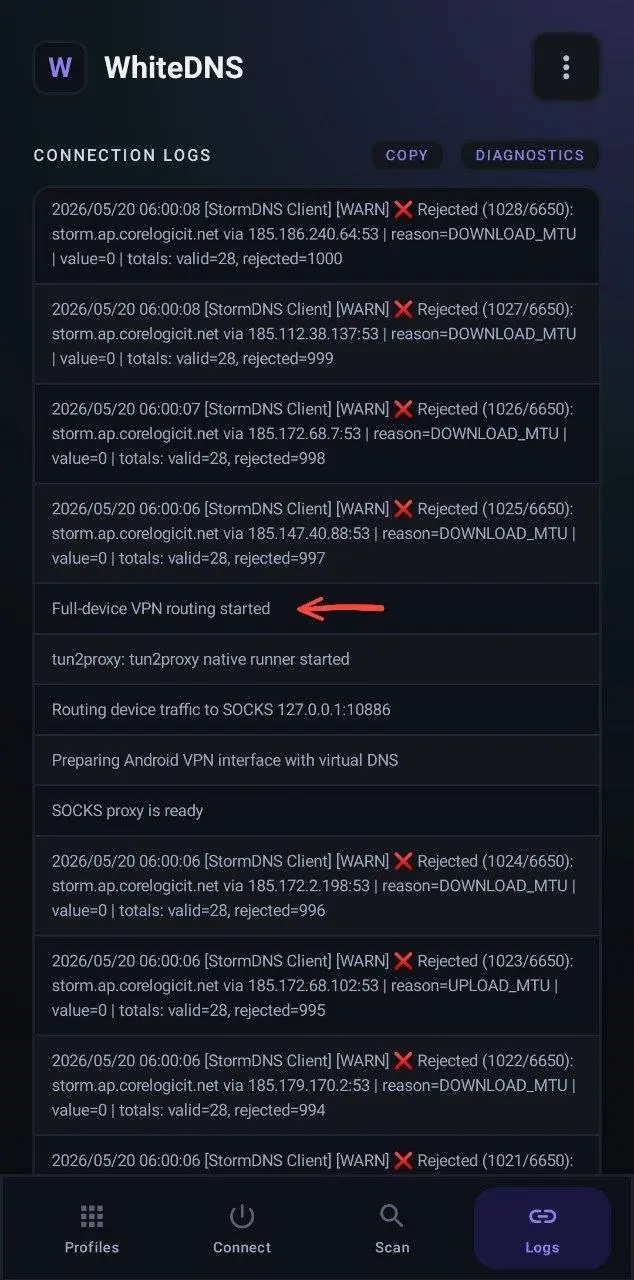
You're connected. Open a website to check.
Tip: make future connections faster
The first connection is slow because WhiteDNS tests the whole list. Save only the working resolvers so next time is quicker.
- Let the scan finish testing all resolvers.
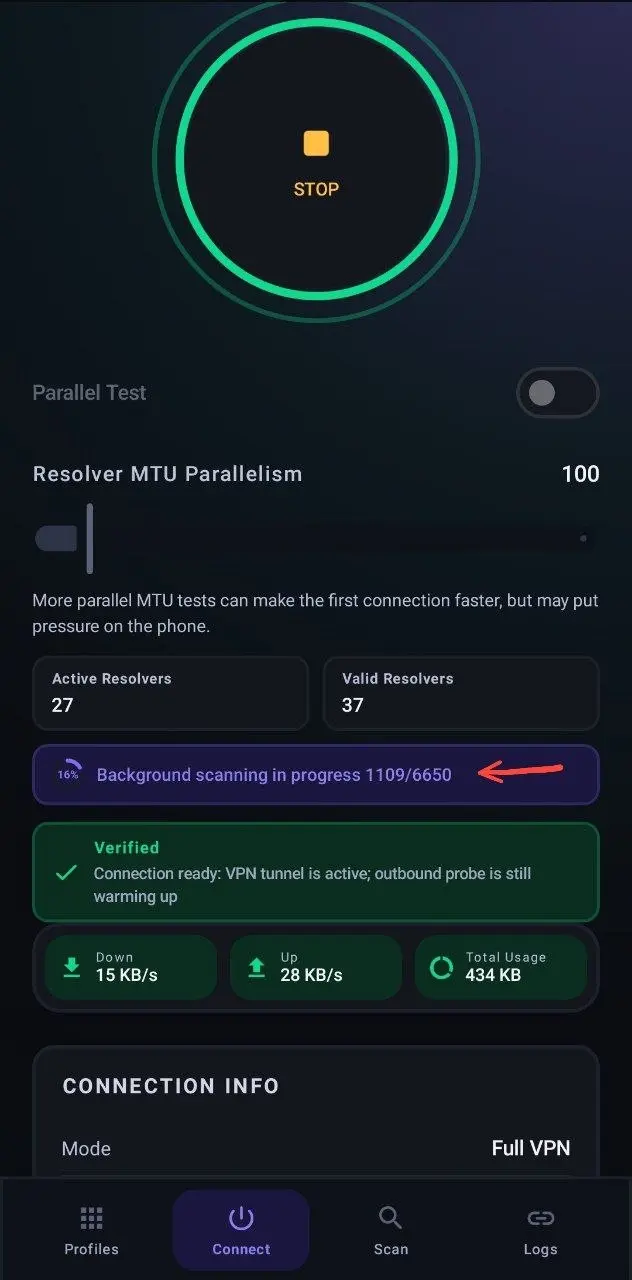
- When it's done, you'll see how many resolvers work. The number depends on your network.
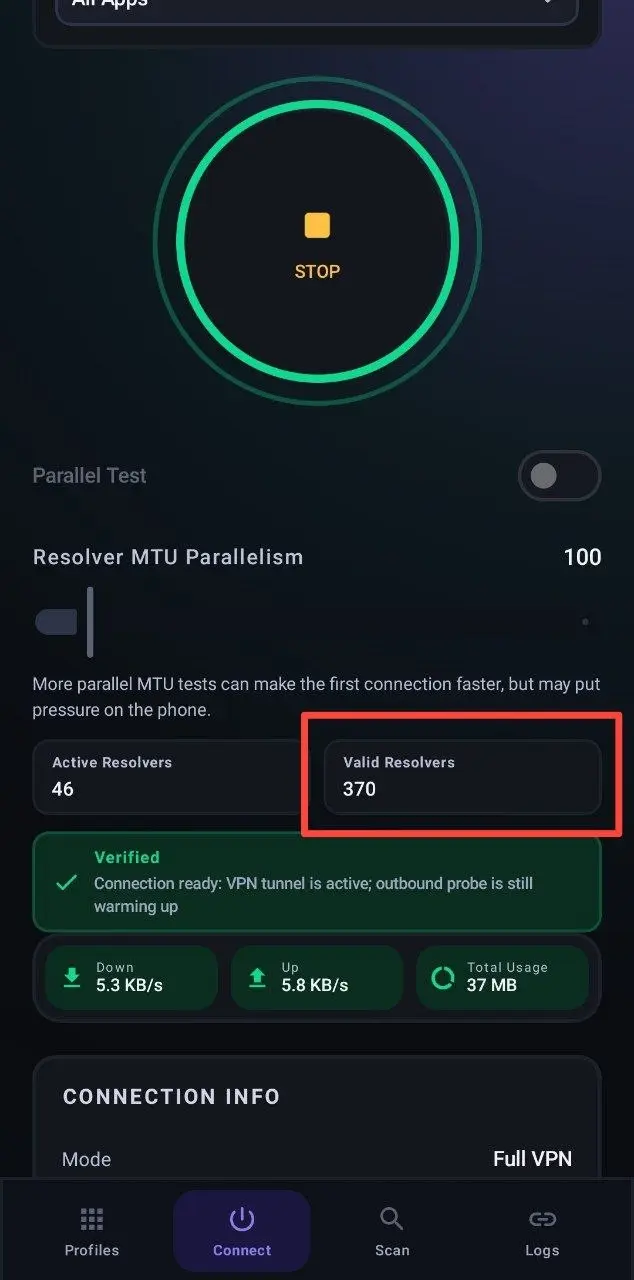
- Tap the valid resolver count, then tap Copy to copy only the working ones.
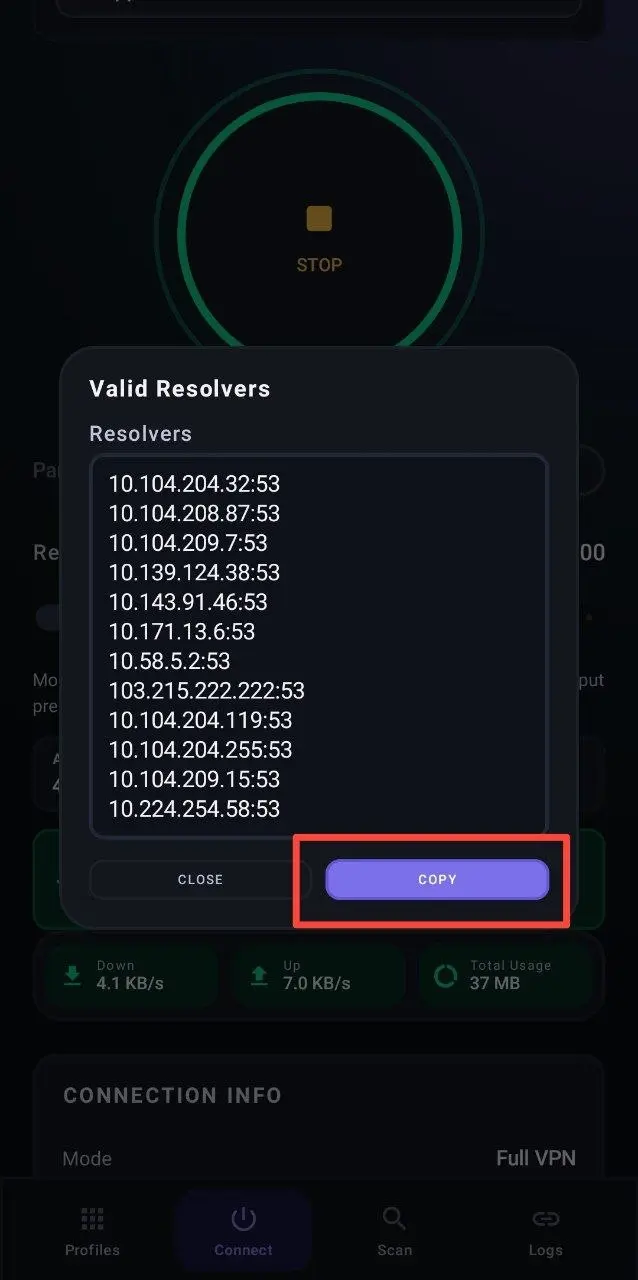
- Create a new resolver list and paste in just these resolvers. Use it for your profile from now on.
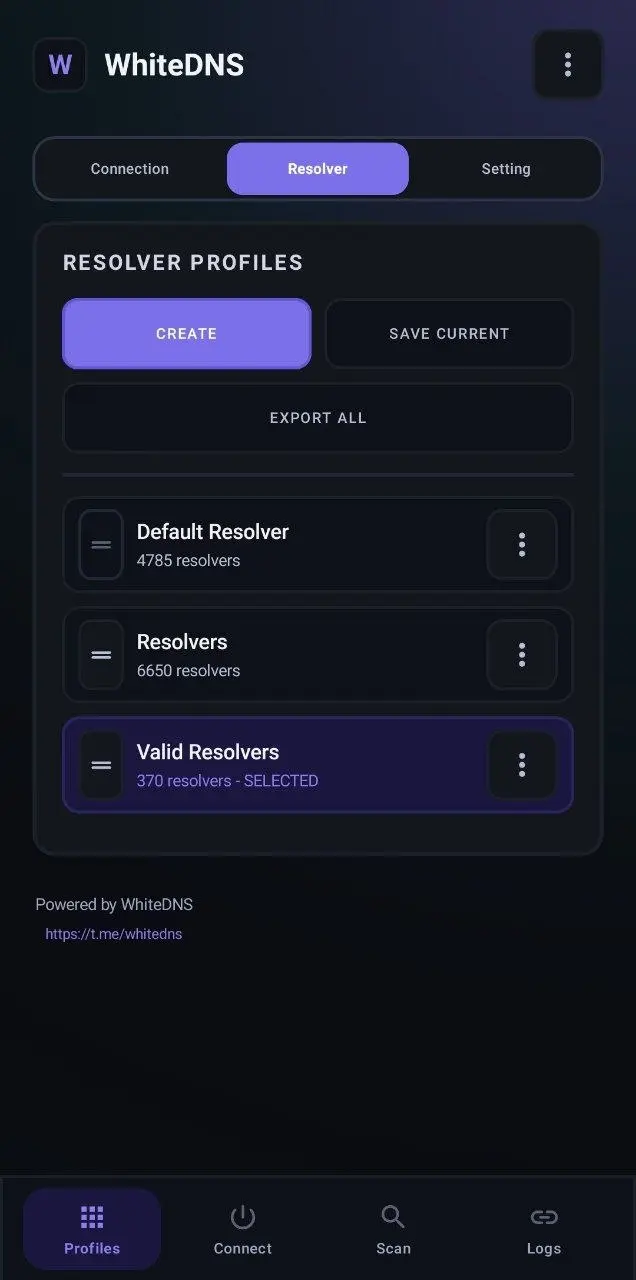
Resolvers get blocked over time. If connections start failing again, go back to the full list and repeat this.
Troubleshooting
- No working resolvers found: your ISP may be blocking the resolvers in the list. Try a different network (Wi-Fi or mobile data), or get a fresh list from Anti-Censorship › StormDNS › Iran Resolvers. See How to Find Working DNS Resolvers.
- Slow connection: DNS tunnels are always slower than a normal VPN. That's the trade-off for getting through heavy filtering. Use a saved list of working resolvers (see the tip above).
- Connection drops or won't start: activate a different server on the StormDNS page and create a WhiteDNS profile for it too. Each server gives you its own hostname.
- Stopped working after you deactivated a server: deactivating revokes that server's hostname within about 5 minutes. Activate it again and update the Domain in your profile.
- A server shows Full or Draining: it isn't taking new users. Choose another.
If DNS tunnels are too slow, check whether a faster option works on your network: the PremierVPN app now includes VLESS and AmneziaWG on more platforms. See What is SlipNet? for the order we recommend.
Still stuck? Open a support ticket and tell us your device, app version and what you've tried. Include your ISP or mobile operator and any errors from the WhiteDNS Logs tab. If you can't reach the portal, email [email protected].