Black Friday Our biggest deal of the year is coming soon Get notified →
Setup guide · iPhone & iPad · October 2026 release

Set up PremierVPN on iPhone & iPad

Install the app, sign in and tap once to connect. It takes about two minutes. This guide covers every screen and setting, including the new protocols: AmneziaWG, VLESS (REALITY, xHTTP and CDN) and Auto mode.

  • iOS 17.6 or later
  • A PremierVPN account, or create one in the app
  • Wi-Fi or mobile data
1 Install

Install PremierVPN from the App Store

Open the App Store on your iPhone or iPad and search for PremierVPN, or use the button below. Tap Get, confirm with Face ID, Touch ID or your Apple ID password, then tap Open. The app needs iOS 17.6 or later, and one PremierVPN account works on all your devices.

2 Create an account

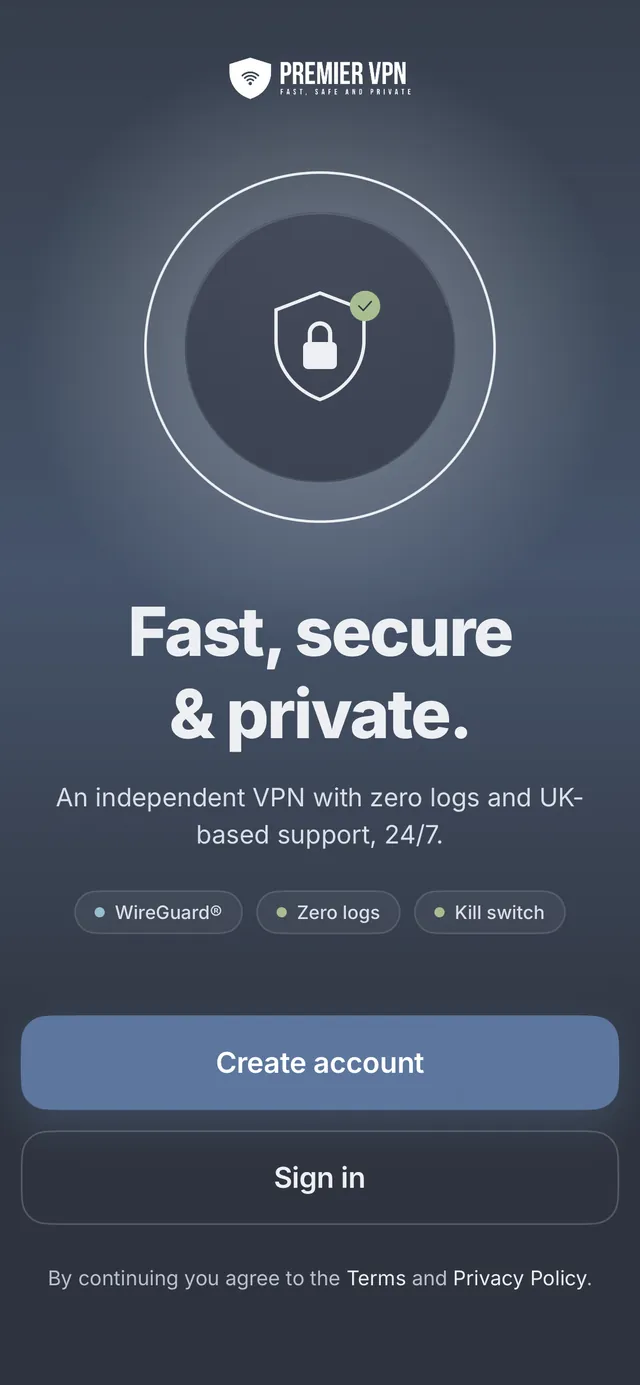
New to PremierVPN? Tap Create account

The Welcome screen gives you two choices. If you're new:

  1. Tap Create account and enter your email and a password. The strength meter shows how strong the password is.
  2. Choose a monthly or annual plan. It's billed through your Apple ID and renews automatically until you cancel.
  3. Confirm with Face ID, Touch ID or your Apple ID password. Your account is created and you're signed in.

Keep the app open for a minute

Creating the account can take up to a minute while the subscription is checked. If it's interrupted, signing in with the same email finishes the set-up.

Already a customer? Tap Sign in and go to step 3. If the app says your email already has an account, sign in with it rather than creating a new one.

PremierVPN welcome screen with Create account and Sign in buttons
Welcome screen
3 Sign in

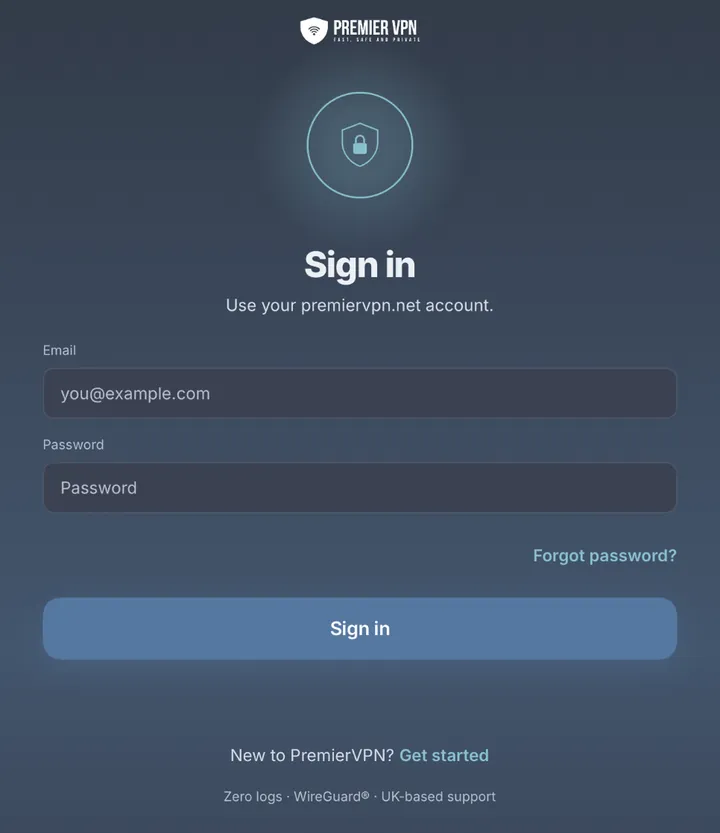
Sign in with your PremierVPN account

Tap Sign in and enter the email and password for your premiervpn.net account, the same login you use at portal.premiervpn.net.

  • If two-factor authentication is on, enter the 6-digit code from your authenticator app. Pasting it works too; codes refresh every 30 seconds.
  • If your account has no active plan, the Plans screen appears so you can subscribe. Restore purchases recovers a subscription bought earlier with the same Apple ID.
  • Forgot password? opens the password reset page. If you've lost access to your authenticator app, contact support.

Signed up with Google or Apple on our website?

Set a password before signing in to the app. Log in to the portal, open Settings and set one there.

Sign in screen with email and password fields, a Forgot password link and a Sign in button
Sign in
4 First-run setup

Three quick steps the first time

VPN permission
iOS asks to add a VPN configuration. Tap Allow and confirm with your passcode or Face ID. This lets PremierVPN send your traffic through an encrypted tunnel.
Notifications
Optional. PremierVPN only notifies you when it matters: the tunnel drops, your IP address changes, or your plan is about to renew. No marketing. Tap Not now to skip.
Style
Choose Glass (soft and rounded, with a large connect button) or Signal (sharp and data-led). Both have the same features, and you can switch any time in Settings.

Later, iOS may ask once more to add a VPN configuration the first time you use AmneziaWG or a VLESS protocol. That's expected: see iOS VPN settings.

5 Connect

Tap to connect

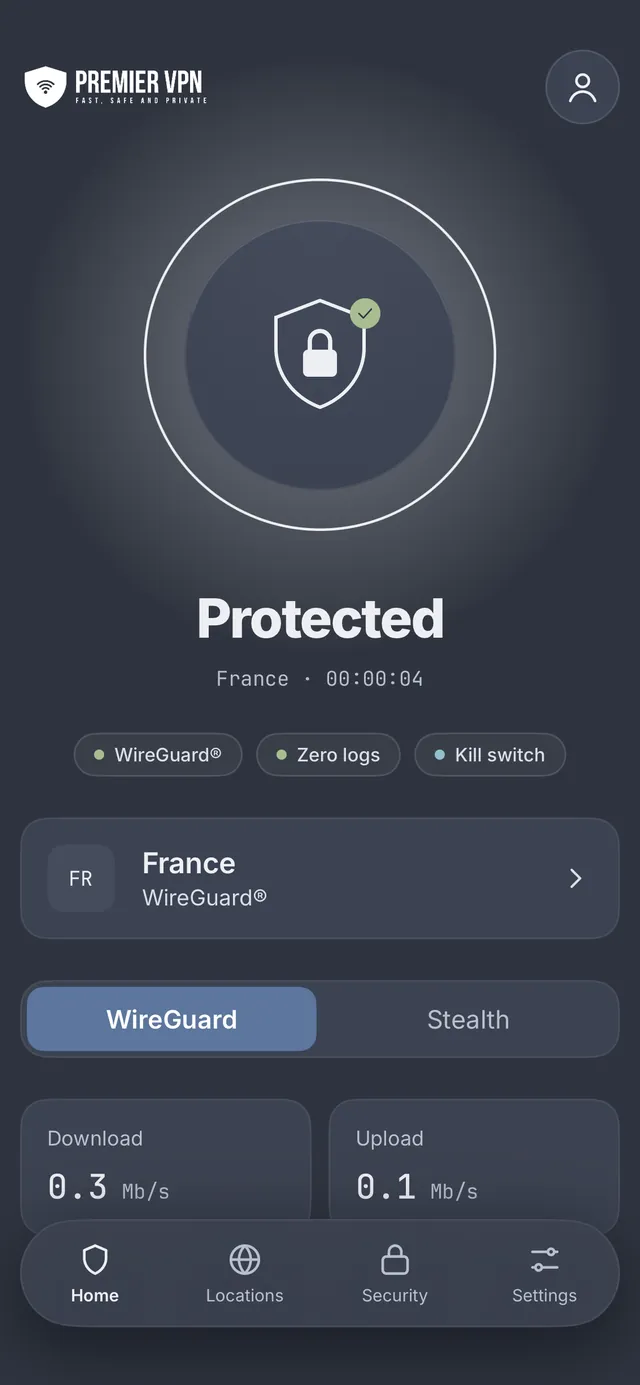
Home is the first tab. In the Glass style, tap the large round button or Connect, and tap Disconnect to stop. In the Signal style, tap Connect, and press and hold Hold to disconnect until the bar fills.

Not protected
Signal: Exposed. Not connected; your normal IP address is visible.
Connecting…
Signal: Connecting. Setting up the tunnel. In Auto mode, the line underneath shows which protocol is being tried.
Protected
Signal: Secure. Connected. Your traffic is encrypted and websites see the VPN's IP address instead of yours.
Reconnecting…
Signal: Rerouting. The connection dropped, for example moving from Wi-Fi to mobile data, and is being restored. With the kill switch on, traffic waits until it's back.
Couldn't connect
Signal: Blocked. A message explains why. Find a working connection (or Try Auto) switches to Auto and tries every protocol in turn; Try again retries the same way.
  • The protocol selector on Home reads Auto · WireGuard · Stealth. Tapping Stealth opens a list of AmneziaWG, REALITY, xHTTP, CDN and Stealth relay (step 6).
  • When connected, chips show the protocol in use, Zero logs and the kill switch state.
  • To change location, tap the location row on Home or pick one in Locations. If you're connected, the app switches straight over.
Home screen in the Glass style showing Protected, with the connect button and live download and upload speeds
Home · connected
6 Protocols

Choose a protocol, or leave it on Auto

A protocol is the way the app carries your traffic to the VPN server. Most people should leave it on Auto. Choose on Home (Auto · WireGuard · Stealth) or in Settings › Protocol. Changing protocol while connected reconnects the VPN.

Auto (default)
Tries each protocol in turn and keeps the first that works, and remembers what worked on each network. For everyone.
WireGuard®
A modern, fast VPN protocol. Most networks; the fastest option. Kill switch: yes.
AmneziaWG
WireGuard® tuned for networks that interrupt standard VPN connections, and nearly as fast. Networks where WireGuard won't connect or keeps dropping. Kill switch: yes.
REALITY
VLESS with REALITY. Looks like an ordinary secure website connection. Restrictive networks; the fastest VLESS option. Kill switch: no.
xHTTP
VLESS over HTTP with REALITY. Networks that cut long-running connections. Kill switch: no.
CDN
VLESS routed through a content delivery network. The most restrictive networks; slower. Kill switch: no.
Stealth relay
WireGuard® inside an encrypted TLS connection. Networks with strict traffic policies. Kill switch: yes.

How Auto works

Auto tries WireGuard® › AmneziaWG › REALITY › xHTTP › CDN › Stealth relay. An attempt only counts once real traffic gets through, not just when the tunnel opens. The first that works is used, and remembered for that Wi-Fi network so it's tried first next time.

  • If a location doesn't offer AmneziaWG, Auto skips it there.
  • If AmneziaWG fails on a location, Auto skips it on that location for 30 minutes so reconnects stay quick.
  • If nothing works, the app says so and suggests another location or checking your internet connection.

The kill switch doesn't apply to REALITY, xHTTP or CDN

iOS can't block other traffic without also blocking the VLESS connection itself. The app says so on Home, in Settings and on the Security tab whenever one of these is in use. If you need the kill switch, use Auto, WireGuard®, AmneziaWG or Stealth relay.

7 Locations

Choose a location

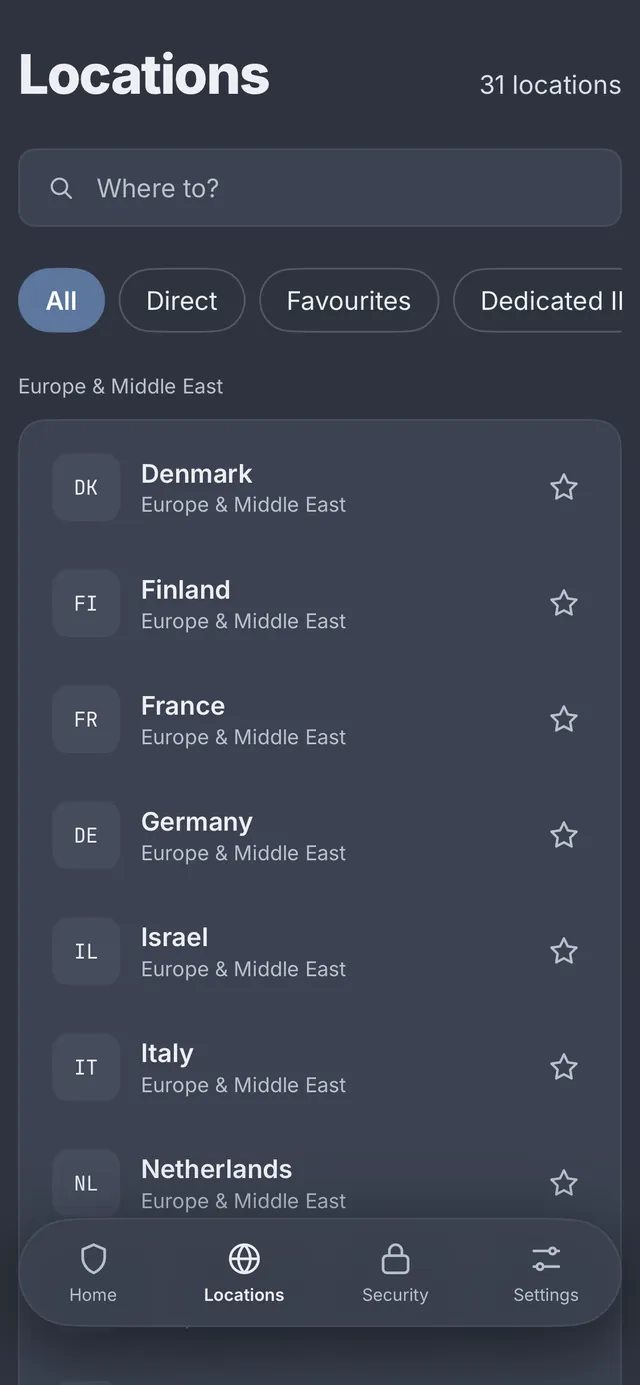
The Locations tab (called Servers in Signal) lists every place you can connect to. Tap one to connect; if you're already connected, the app switches to it.

All
Every standard location, grouped by region: Europe & Middle East, Americas, Asia-Pacific.
Direct
Locations that connect to the server's IP address instead of its name. Use these if a network has trouble looking up our servers.
Favourites
Locations you've starred. Tap the star on any location to add or remove it.
Dedicated IP
Your dedicated IP addresses, plus the option to add one (step 8).
VLESS
New. VLESS servers grouped into REALITY, xHTTP and CDN. Tapping one connects to it and sets that type as your protocol.
  • Search by city, country, hostname or two-letter country code. On the VLESS tab you can also search by type, for example "cdn". Press Return to connect to the top result.
  • Pull down on the list to refresh it.
  • With REALITY, xHTTP or CDN chosen, tapping a location in All, Direct or Favourites connects to the nearest server of that type in the same country. A note at the top of the list says so.
  • Dedicated IPs always connect with WireGuard®, whatever protocol is chosen.
Locations screen with a search box, filter tabs and a list of countries
Locations
8 Dedicated IP

Add an IP address that's yours alone

A dedicated IP is a static address only you use. Add it to allow-lists for work systems and servers, and see fewer verification checks than on a shared address.

  1. Open Locations › Dedicated IP and tap Get a dedicated IP, or go to Settings › Account & plan.
  2. Choose a location and a monthly or annual add-on. It's added to your plan and renews automatically.
  3. It's set up within 24 hours, then appears at the top of Locations and on the Dedicated IP tab.

Dedicated IPs always use WireGuard® (with Stealth relay if that's switched on), because the address lives on one WireGuard server.

9 Security

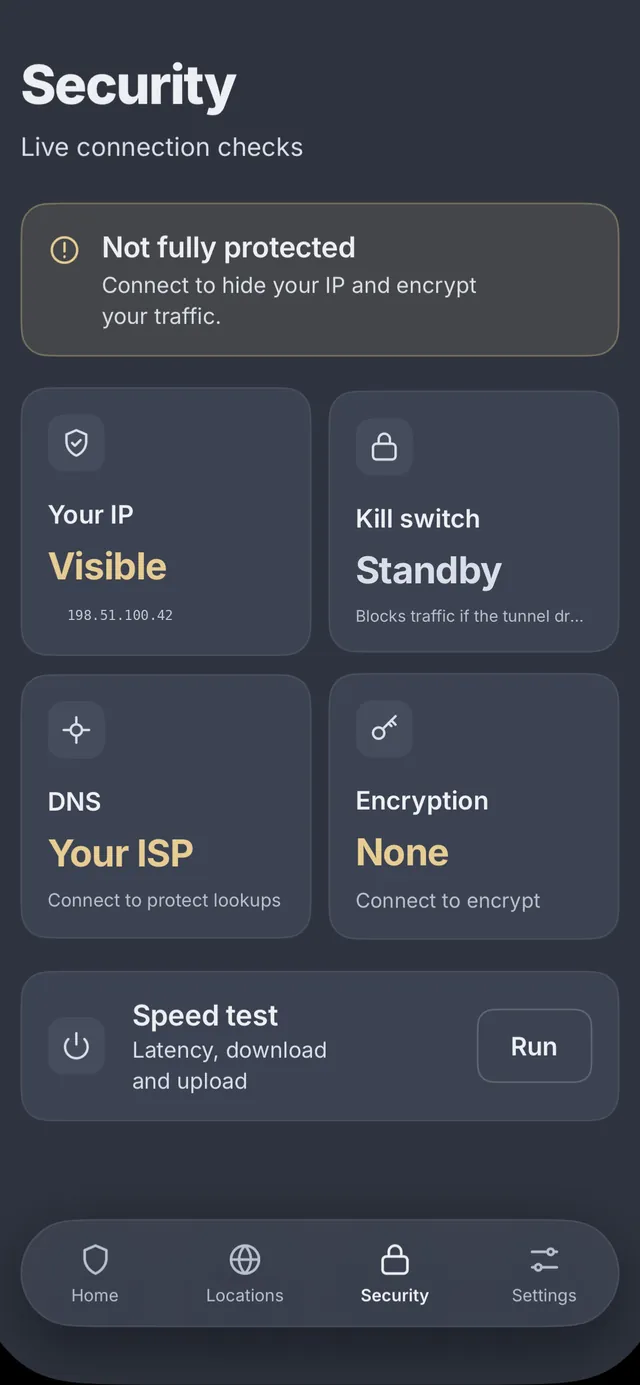
Check your protection on the Security tab

The Security tab runs live checks on your device and sums up whether everything has passed.

Your IP
Your current public IP address. When connected, it's the VPN server's address, not yours.
Kill switch
Armed when connected: traffic is blocked if the tunnel drops. Standby when disconnected, Off if turned off in Settings, and Not used on VLESS protocols.
DNS
In tunnel: your website lookups go through the encrypted tunnel, not your internet provider. Shows which resolver is in use.
Encryption
ChaCha20-Poly1305 for WireGuard®, AmneziaWG and Stealth relay; TLS 1.3 for VLESS.
Speed test
Tap Run (Glass) or Run speed test (Signal) to measure latency, download and upload. It's also in Settings › Diagnostics.
Security screen showing live checks for IP, kill switch, DNS and encryption, and a speed test
Security · before connecting
10 Settings

Adjust your settings

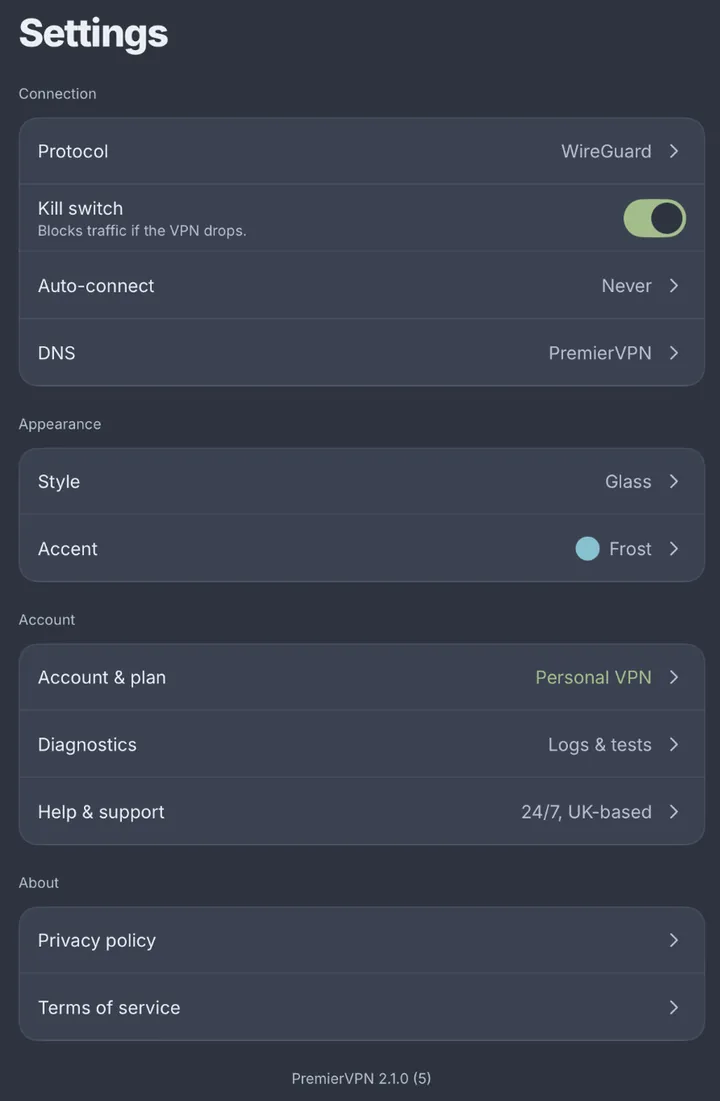
Open the Settings tab. The defaults suit most people; here's what each option does.

Protocol
Auto (the default), WireGuard®, or one of the Stealth options: AmneziaWG, REALITY, xHTTP, CDN or Stealth relay. Each is listed with a description (step 6).
Kill switch
On by default. Blocks all internet traffic if the VPN drops, so nothing leaks outside the tunnel. Works with WireGuard®, AmneziaWG and Stealth relay. Changes apply next time you connect.
Auto-connect
Never (default): connect only when you choose. Always: iOS brings the VPN up whenever your device uses the network. Plus three switches: Connect when the app opens, Reconnect after a drop (on by default), and Reconnect when the network changes.
DNS
DNS leak protection (on) keeps every lookup inside the tunnel. The ad blocker (off) uses AdGuard DNS to block ads and trackers. Resolver: PremierVPN (default), Google, Cloudflare, Quad9 or AdGuard. Changes apply next time you connect.
Style · Accent
Glass or Signal, and Frost, Teal or Snow (step 12).
Diagnostics
App version, protocol and server in use, DNS status, the last error, the speed test and connection logs. Logs show connection events and errors only: no sites, no traffic, no DNS lookups. Export logs sends them to support; Keep connection logs turns logging on or off.
Help & support
Opens the help centre. Support is UK-based and available 24/7.
Settings list with Protocol, Kill switch, Auto-connect, DNS, Style, Accent, Account and plan, Diagnostics, and Help and support
Settings
11 Account

Manage your account

Open Settings › Account & plan.

Plan
Your plan and its status. Manage plan opens your subscription; App Store subscriptions are managed in your Apple ID settings.
Dedicated IPs
Your dedicated IP addresses. Tap one to copy it.
Two-factor
Whether two-factor sign-in is on for your account.
VPN username
The username for manual VPN set-ups on other devices. Tap to copy.
Sign out
Disconnects the VPN, clears the app's VPN configurations and makes this device forget your account.
Delete account…
Starts account deletion, which you confirm on premiervpn.net. It doesn't cancel an App Store subscription, so cancel that first with Manage subscription so you aren't charged again.
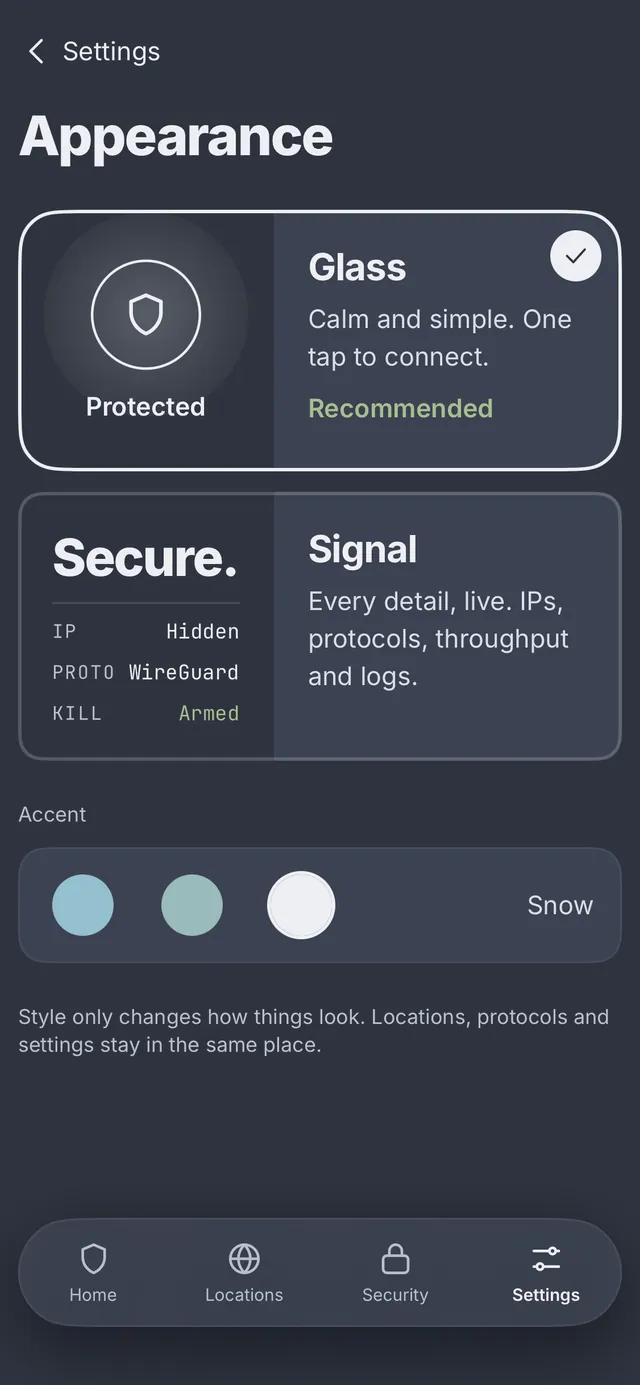
12 Glass or Signal

Pick the look you prefer

Go to Settings › Style. The change is instant; locations, protocols and settings all stay in the same place.

Glass
Soft and rounded, with one tap to connect.
Signal
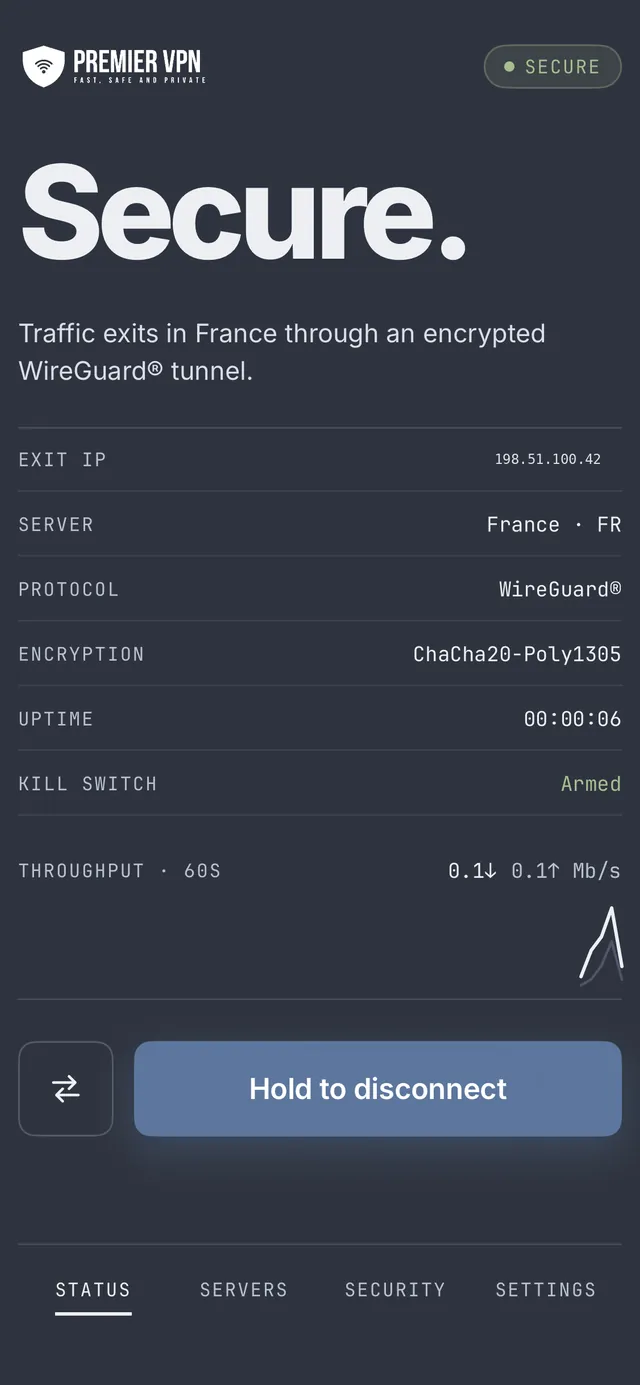
Sharp and data-led: server, protocol, encryption, elapsed time, kill switch state and live download/upload speeds, with a chart and session log. Tabs read Home, Servers, Security and Settings.
Accent
Frost, Teal or Snow, the highlight colour used across the app.
Appearance screen with the Glass and Signal styles and three accent colours

Appearance

Signal style home screen reading Secure, with server, protocol, encryption, uptime and throughput

Signal style

iPadOS

Using PremierVPN on iPad

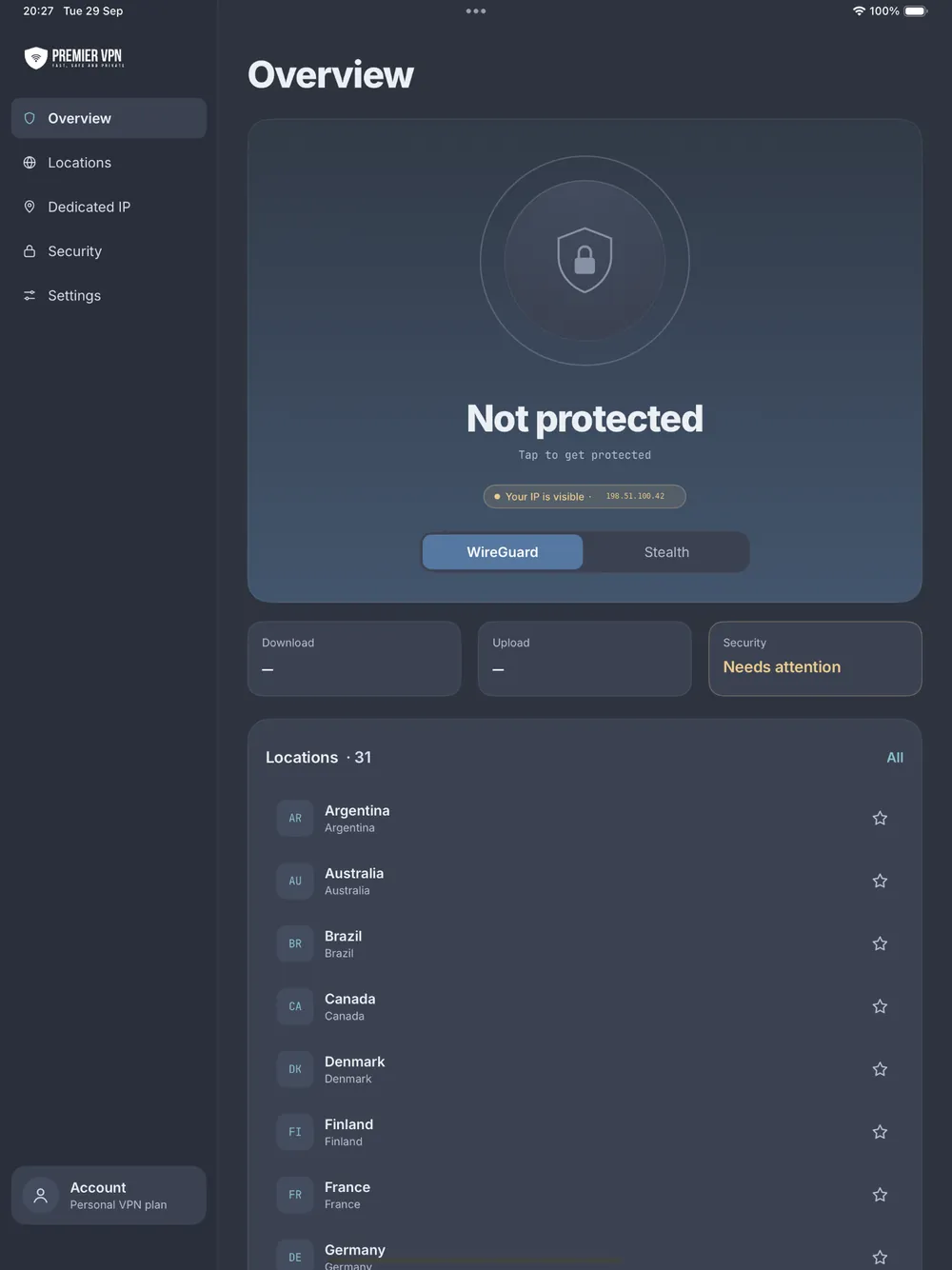
Setup is the same. In full screen or a large Split View the app uses a wider layout; in Slide Over and narrow Split View it uses the iPhone layout. Glass has a sidebar with Overview, Locations, Dedicated IP, Security and Settings, plus your favourites and account. Signal has a top bar with section tabs, connection status and Connect/Disconnect.

PremierVPN on iPad: a sidebar with Overview, Locations, Dedicated IP, Security and Settings, beside the connect button and location list
iPad · Overview
iOS Settings › VPN

The VPN configurations the app adds

Each protocol family runs separately, so the app adds up to three entries in iOS Settings › VPN. iOS asks to add each one the first time you use it.

PremierVPN
WireGuard® and Stealth relay
PremierVPN AmneziaWG
AmneziaWG
PremierVPN Stealth
VLESS: REALITY, xHTTP and CDN

Only one runs at a time and the app switches between them for you, so there's nothing to change in iOS Settings. If you turn a connection off there, the app shows you as disconnected and doesn't reconnect.

Troubleshooting

Something not working?

The app can't connect on this network

Tap Find a working connection to switch to Auto, which tries every protocol. If you've chosen a protocol yourself, try AmneziaWG first, then REALITY, then CDN. Trying another location can also help.

It connects but websites don't load

Try another location or protocol. If you use a custom DNS resolver or the ad blocker, switch DNS back to PremierVPN in Settings › DNS.

I have no internet after disconnecting

Make sure the VPN is off in the app, not just paused. If the kill switch is on and iOS still shows a VPN connecting in Settings › VPN, turn that VPN off there.

The kill switch says "Not used"

You're connected with REALITY, xHTTP or CDN, which don't support the kill switch. Use Auto, WireGuard®, AmneziaWG or Stealth relay if you need it.

A location says it doesn't offer AmneziaWG

Not every location has AmneziaWG yet. Pick another location, or use Auto, which moves on to the next protocol automatically.

iOS asked me to add another VPN configuration

That's expected the first time you use AmneziaWG or a VLESS protocol. See iOS VPN settings.

I've just subscribed, but I can't connect yet

Your VPN account is set up right after you pay, which can take up to a minute. Keep the app open, then tap connect again. If set-up was interrupted, signing in with the same email completes it.

I can't sign in

Use the same email and password as portal.premiervpn.net, and check you can log in there first. Forgotten your password? Tap Forgot password? in the app, or reset it here. If you signed up with Google or Apple on our website, set a password in the portal under Settings first.

My dedicated IP doesn't appear

Dedicated IPs are set up within 24 hours of purchase. Pull down on the Locations list to refresh.

Support asked for my logs

Go to Settings › Diagnostics › Export logs and send the file. Logs contain connection events and errors only, not your browsing.

How do I change or cancel my subscription?

If you subscribed in the app, Apple manages it: open iOS Settings, tap your name, then Subscriptions, or use Manage plan in the app. If you subscribed on our website, manage it in the portal.

I need more help

In the app, go to Settings › Help & support. You can also visit our Support & Help Centre or open a support ticket. Our support team is UK-based and available 24/7.
Ready to get started?

Download PremierVPN for iPhone and iPad and you're one tap from protected.

Stay Ahead of Online Threats

Get VPN tips, security insights, and exclusive offers delivered straight to your inbox. No spam — just the essentials.

Unsubscribe at any time. We respect your privacy.

PremierVPN Support