PremierVPN for Mac
Connect in one click from the window or the menu bar. Five protocols, from fast WireGuard® to VLESS for networks that block VPNs, with a kill switch and a Security Dashboard that shows exactly how protected you are.
- WireGuard® · AmneziaWG · VLESS
- Kill switch
- Menu bar
- Zero logs
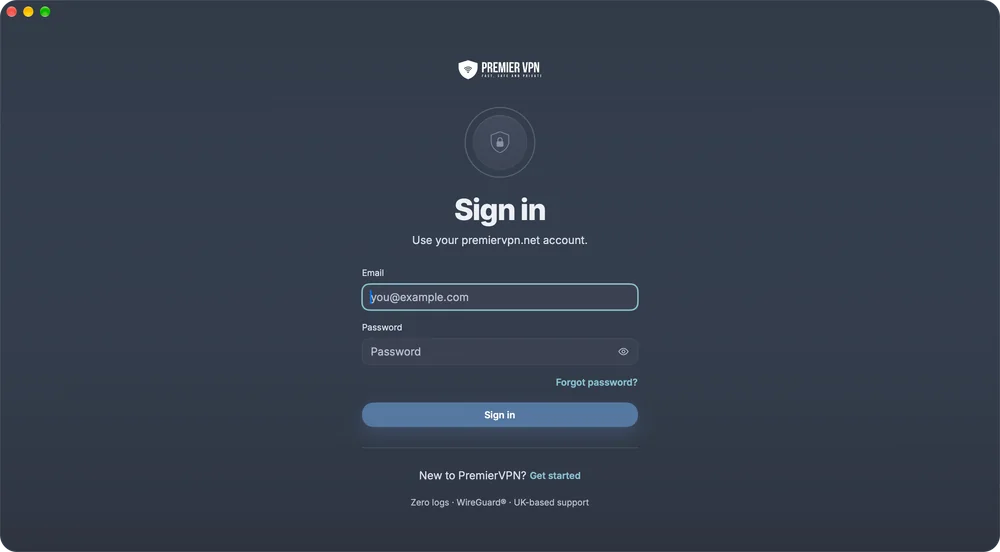
Sign in with your premiervpn.net account, or choose a plan in the app · Setup guide
Everything at a glance
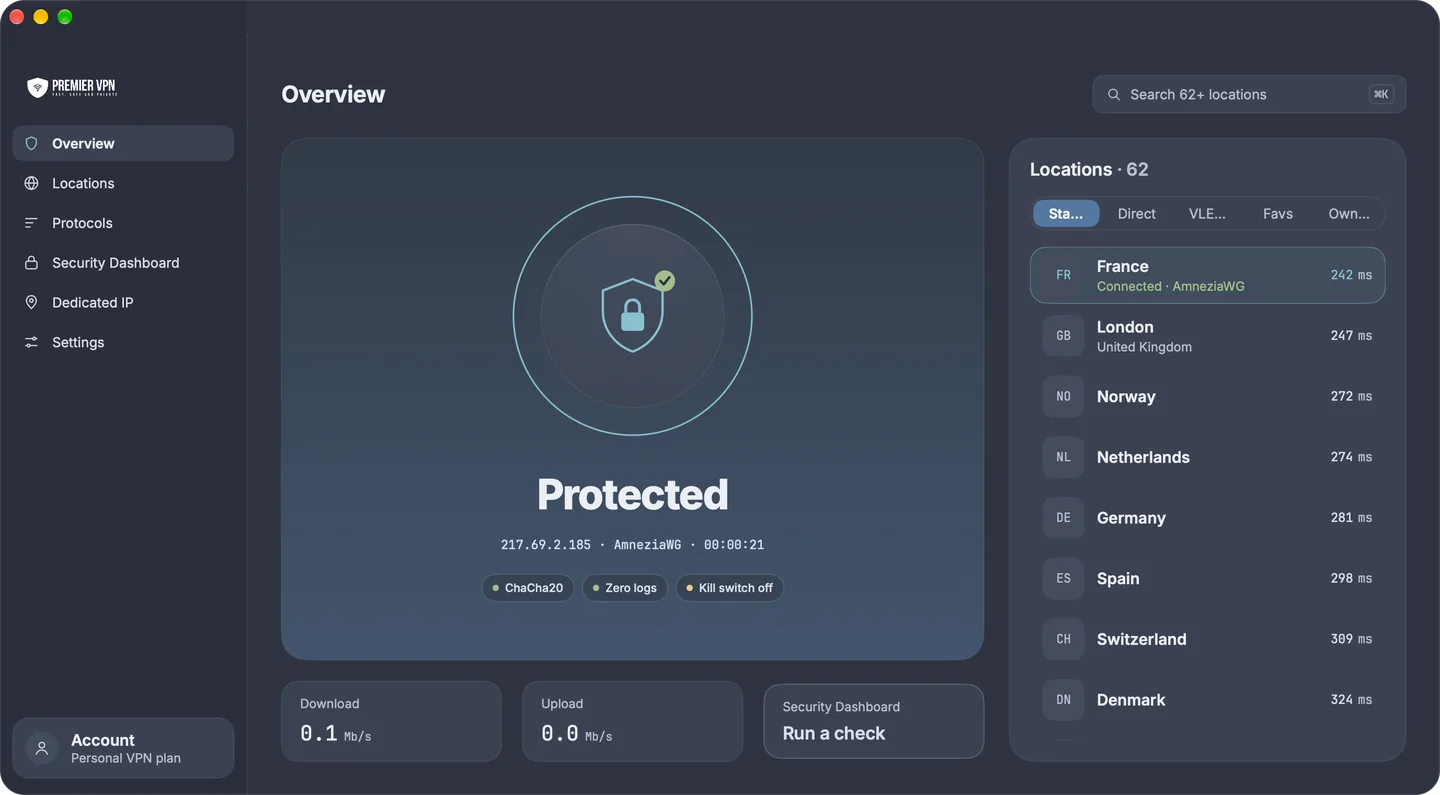
Your connection, your speeds and the full list of locations sit side by side, so you can see where you're connected and switch without leaving the screen.
Clear status
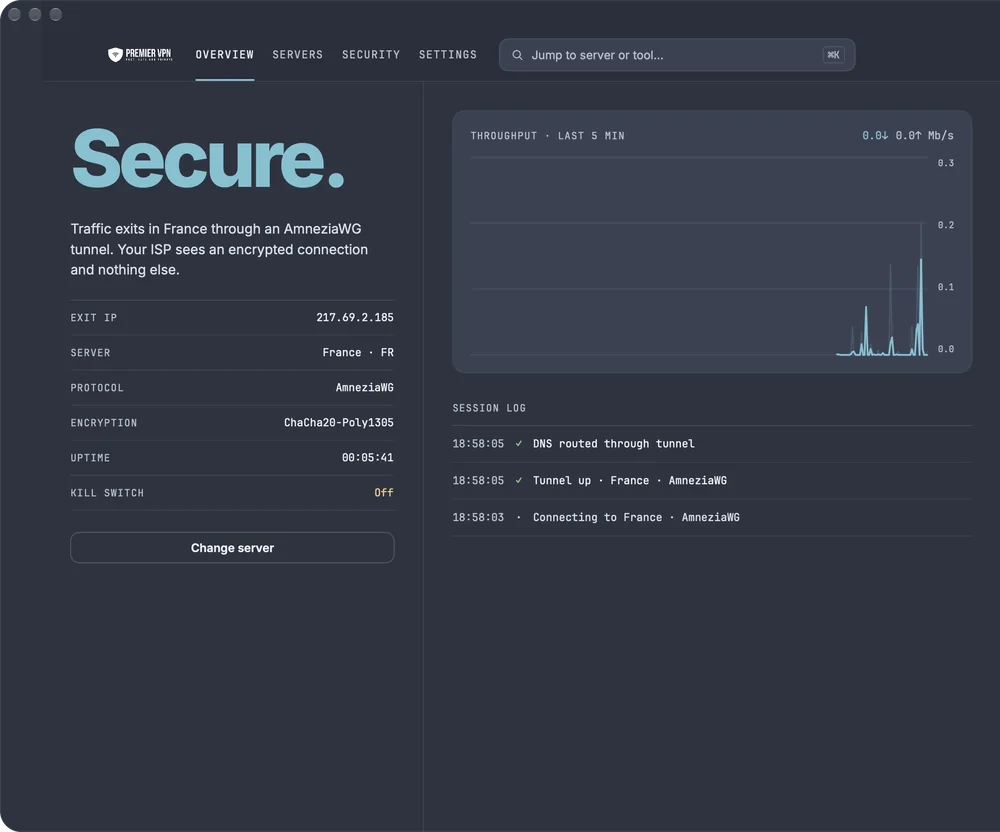
Protected or Not protected in big letters, with your exit IP, the protocol and how long you've been connected underneath.
Connect from anywhere
Click Connect, use the menu bar, or press ⇧⌘Return. With no location picked, it uses the fastest one it has measured.
Switch in one click
Click another location while connected and the app moves you straight to it.
Live speeds
Download and upload while you're connected. The Signal style adds a five-minute throughput chart and a session log.
A security check on hand
The Security Dashboard card runs a leak test from the Overview and tells you whether all checks passed.
Find anything fast
Press ⌘K to jump to any location or screen, and ⌘1 to ⌘6 to move between them.
Lives in your menu bar
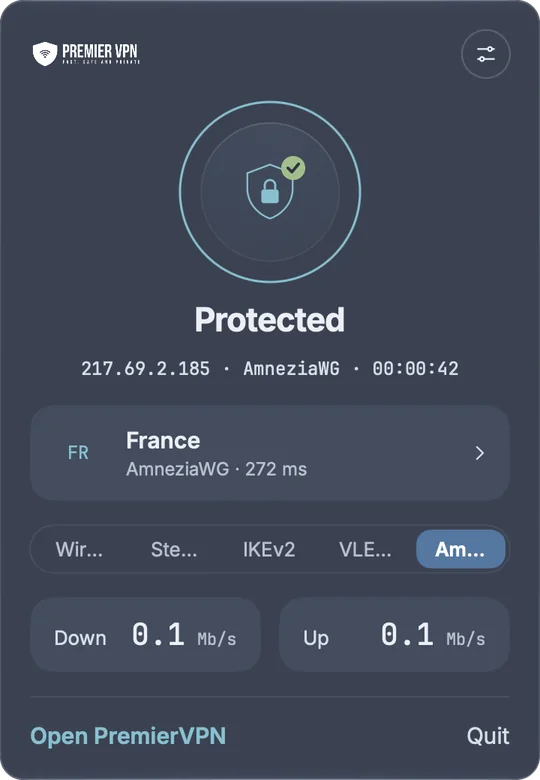
The PremierVPN icon in the menu bar changes with your connection, so you can check it at a glance. Click it for a popover that covers most day-to-day use without opening the main window.
- Connect or disconnect, and see your location, protocol and ping
- Switch protocol on the spot; it reconnects on the new one
- Live Down and Up speeds
- Keep it running in the menu bar when the window closes, and hide the Dock icon if you like
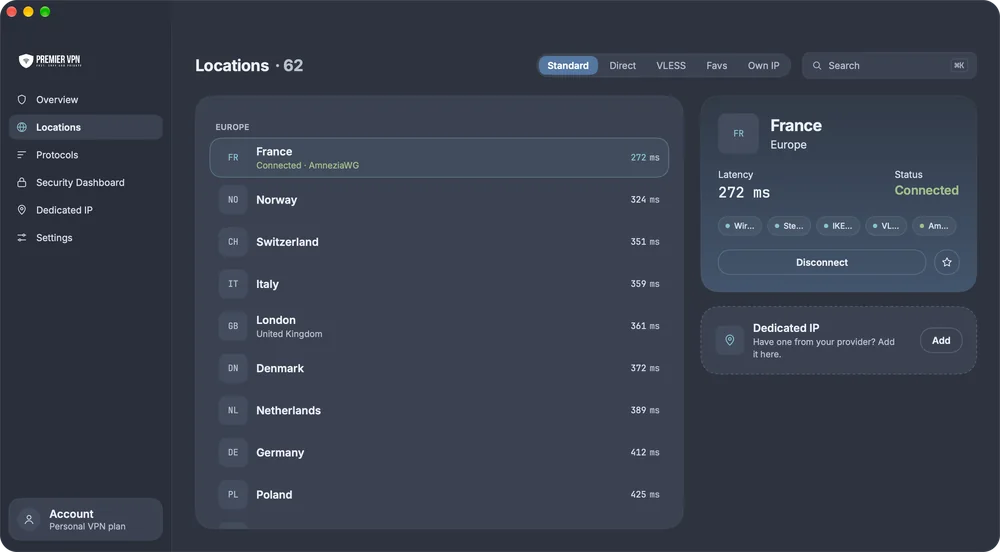
The right server, with live latency
Every location shows its latency, measured automatically, and which protocols it supports. Search by country, city or hostname, filter by region, and star the ones you use most.
Five ways to connect
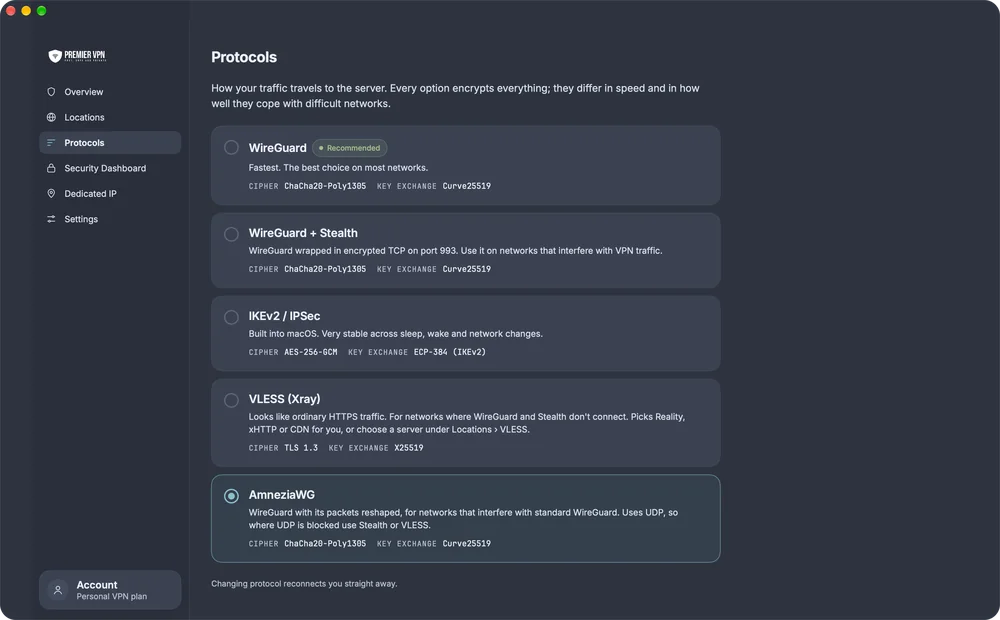
WireGuard® is the default and the right choice on most networks. Every option encrypts everything; they differ in speed and in how well they cope with difficult networks. Changing protocol while connected reconnects you straight away.
If a connection fails, the app tells you why and offers the next protocol to try, one click at a time:
- WireGuard or IKEv2
- AmneziaWG
- Stealth
- VLESS
WireGuard®
Modern and lightweight. The best choice for everyday use, streaming and gaming.
ChaCha20-Poly1305 · Curve25519IKEv2 / IPSec
Very stable across sleep, wake and network changes.
AES-256-GCM · ECP-384WireGuard + Stealth
WireGuard wrapped in encrypted TCP on port 993, for networks that interfere with VPN traffic.
ChaCha20-Poly1305 · TCP 993AmneziaWG
WireGuard with its packets reshaped, for networks that interfere with standard WireGuard. It uses UDP, so where UDP is blocked use Stealth or VLESS.
ChaCha20-Poly1305 · Curve25519VLESS (Xray)
Looks like ordinary HTTPS traffic, for networks where WireGuard and Stealth don't connect. The app picks the type for you, or choose a server on the VLESS tab.
TLS 1.3 · X25519Kill switch
Works with WireGuard and AmneziaWG. Stealth, IKEv2 and VLESS don't use it, and the app says so whenever one of those is chosen.
Settings › ConnectionSee exactly how protected you are
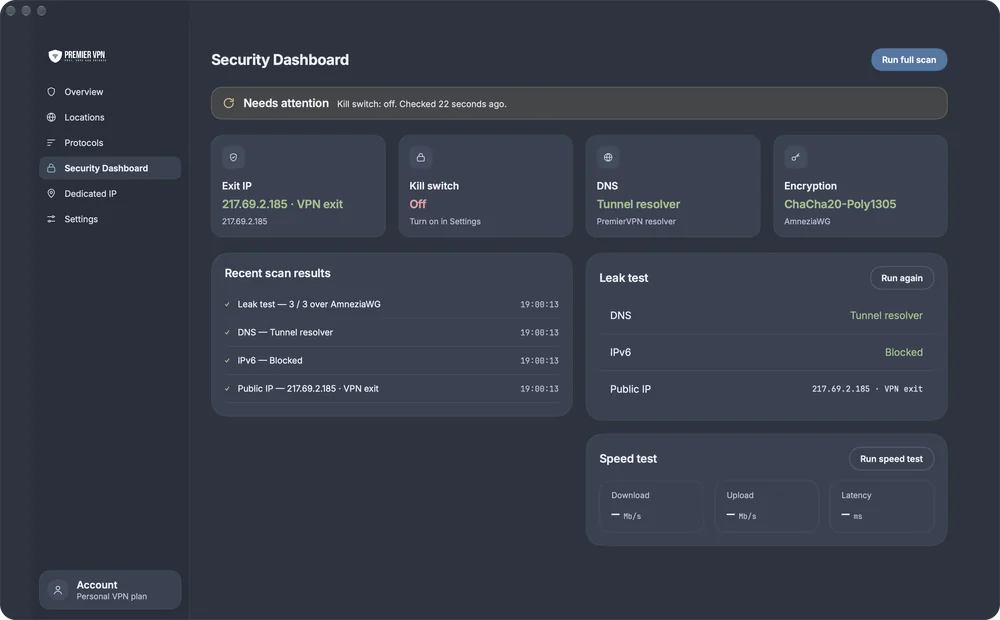
A scan runs when you open the dashboard and every time you connect or disconnect. The banner sums it up: All checks passed, Needs attention, or You're not protected right now.
- Exit IP: the address websites see, checked against the VPN server's
- Kill switch: armed, on, off, or not used by this protocol
- DNS: whether lookups go through the tunnel, and which resolver
- Encryption: the cipher in use right now
- Leak test for DNS, IPv6 and your public IP, explained in plain words
- Speed test for download, upload and latency over your current connection
Protected without thinking about it
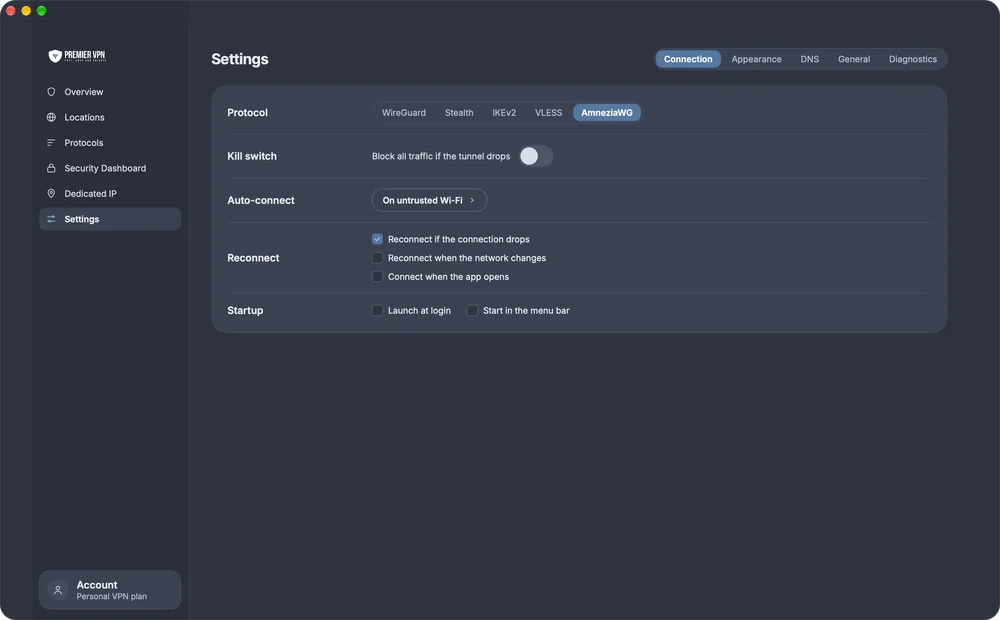
Three settings keep your Mac protected in the background.
- Kill switch blocks all traffic if the tunnel drops. It switches on once the tunnel is confirmed working, so it never blocks the connection itself.
- Auto-connect on Wi-Fi you don't trust, or always. Home and office can stay direct: just trust them.
- Reconnect after sleep or a dropped session, when the network changes, or as soon as the app opens.
- Launch at login, and start in the menu bar.
Two looks, one app
Switch style whenever you like. Locations, protocols and settings stay in the same place; only the look changes. The menu bar popover can match, or always use one style.
Private by default
DNS leak protection
Every DNS lookup goes through the tunnel. Use our resolver, or Google, Cloudflare, Quad9 or AdGuard; lookups still travel through the VPN.
Ad and tracker blocking
One switch blocks ads and trackers for the whole Mac while you're connected, not just the browser.
IPv6 blocked
The leak test checks that IPv6 traffic can't skip the VPN.
Zero logs
The app keeps connection events for seven days so support can help. No sites, no traffic, no DNS lookups.
Dedicated IP
An address only you use, so sites see the same IP every time with fewer security checks and captchas. Ones bought on premiervpn.net appear automatically.
Notifications that matter
Only connection news: drops, reconnects and IP changes. No marketing.
What you need
- A Mac with a recent version of macOS
- Download from the Mac App Store
- A PremierVPN account, or a plan chosen in the app
The Mac App Store lists the macOS version needed. One account covers PremierVPN on every device.
Protect your Mac today
Install PremierVPN from the Mac App Store, sign in or create your account, and you're one click from protected. UK-based support, 24/7.