Black Friday Our biggest deal of the year is coming soon Get notified →
Setup guide · Windows 10 & 11 · Version 1.2.1

Set up PremierVPN on Windows

Download the installer, sign in and click once to connect. It takes about two minutes. This guide follows the new app design and explains every screen and setting, including Bypass mode for networks that block VPNs.

  • Windows 10 or 11
  • 64-bit Intel/AMD or ARM64 PC
  • Administrator rights to install
  • A PremierVPN account with an active plan
1 Download

Download the right installer

There are two versions. Most PCs need x64. Laptops with a Snapdragon or other ARM processor, such as the Surface Pro X, need ARM64.

Not sure which you have?

Open Windows Settings → System → About and look at System type. "x64-based processor" means x64; "ARM-based processor" means ARM64.
2 Install

Run the installer

Double-click the .msi file you downloaded and follow the steps. The default options suit almost everyone. When Windows asks whether to allow the app to make changes, click Yes.

PremierVPN needs administrator rights because it manages the Windows firewall (for the kill switch), your DNS settings and its VPN network adapters. Everything it needs is included in the installer.

Used the separate PremierVPN Cloak app before?

Close it, and don't run it at the same time as this app. Cloak is now built in, under Bypass mode (step 7), so you can uninstall the old app.

If Windows SmartScreen shows a warning, click More info, then Run anyway.

3 Sign in

Sign in with your PremierVPN account

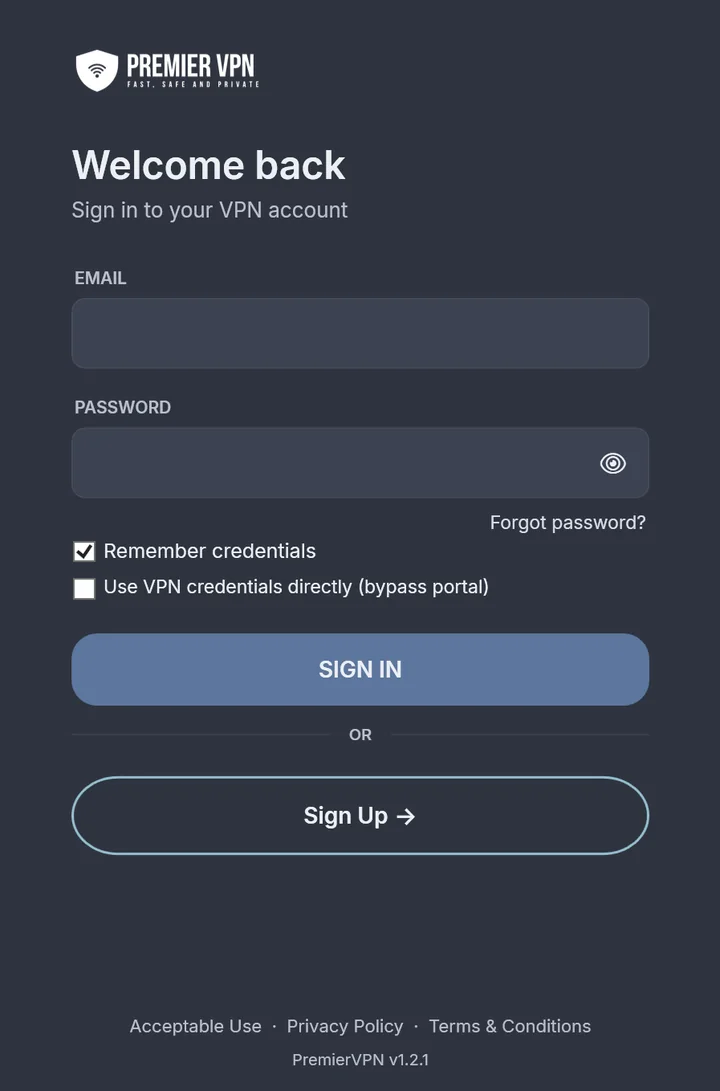
Open PremierVPN from the Start menu. Enter the email and password for your premiervpn.net account and click Sign in. It's the same login you use at portal.premiervpn.net.

  • If your account uses two-factor authentication, a Two-factor code box appears. Enter the 6-digit code from your authenticator app.
  • Tick Remember credentials and the app signs you in by itself next time.
  • Forgot password? and Sign Up open our website.

After you sign in, the app opens on the Overview. If your account doesn't have an active VPN plan, you can't connect yet; the app shows a message that takes you to checkout.

Signed up with Google or Apple on our website?

Set a password first. Log in to the portal, open Settings and set one there.

Use VPN credentials directly

Tick this to sign in with your VPN username and password (shown in your dashboard) instead of your account. It's useful if our website can't be reached. In this mode your account details, the Vault and VLESS servers aren't available.

Sign-in screen with email and password, Forgot password, Remember credentials, Use VPN credentials directly, Sign in and Sign up
Sign in
4 Connect

Pick a location and connect

  1. Click a location in the Locations list on the right. Double-click it (or press Enter) to choose it and connect in one go.
  2. Otherwise click the round button, or the button under it. It names the place you picked, for example Connect to Germany.
  3. When the ring turns your accent colour with a tick and reads Protected, you're connected.

To disconnect, click the round button or Disconnect. While it's connecting, the same button reads Cancel.

What you'll see

Not protected
Grey ring and an amber Your IP is visible chip, as a reminder that you aren't protected.
Connecting
An amber ring that breathes, with step chips such as Handshake ✓.
Protected
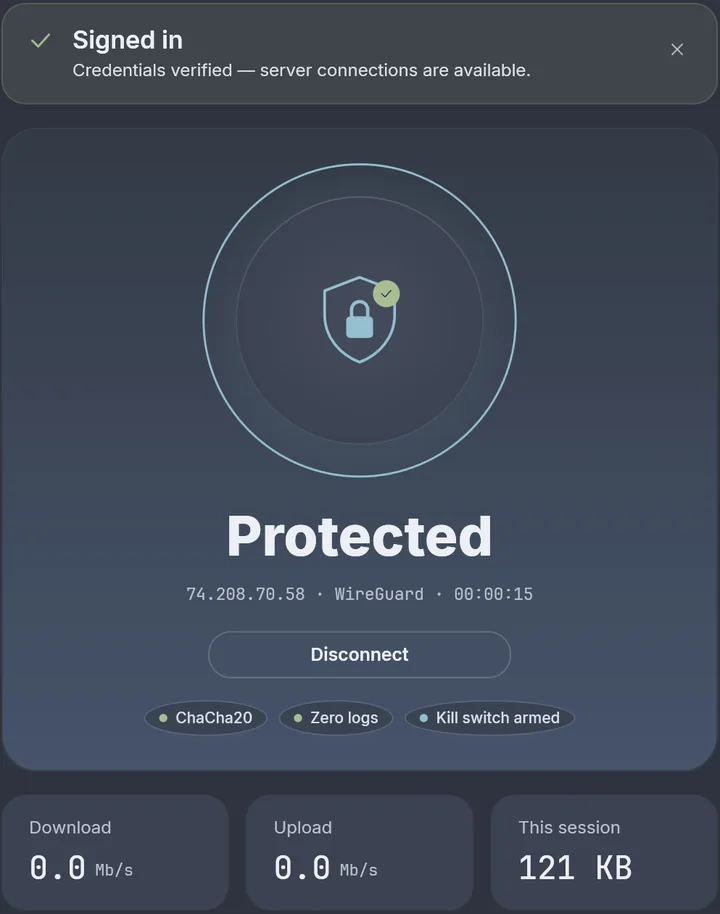
Your new IP, the protocol and how long you've been connected. The IP reads Checking IP… for a moment until it's confirmed.
Reconnecting
Amber, and it tells you whether the kill switch is holding your traffic in the meantime.
Couldn't connect
A red banner with the reason. It may offer Try Stealth or Try Bypass to retry a different way.

Once connected, chips show the encryption in use, Zero logs and Kill switch armed. The tiles underneath show download and upload speed and the data used this session.

Overview reading Protected, with the IP, WireGuard and time connected, a Disconnect button, ChaCha20, Zero logs and Kill switch armed chips, and download, upload and session tiles
Overview · connected
5 Choose a location

Find the right server

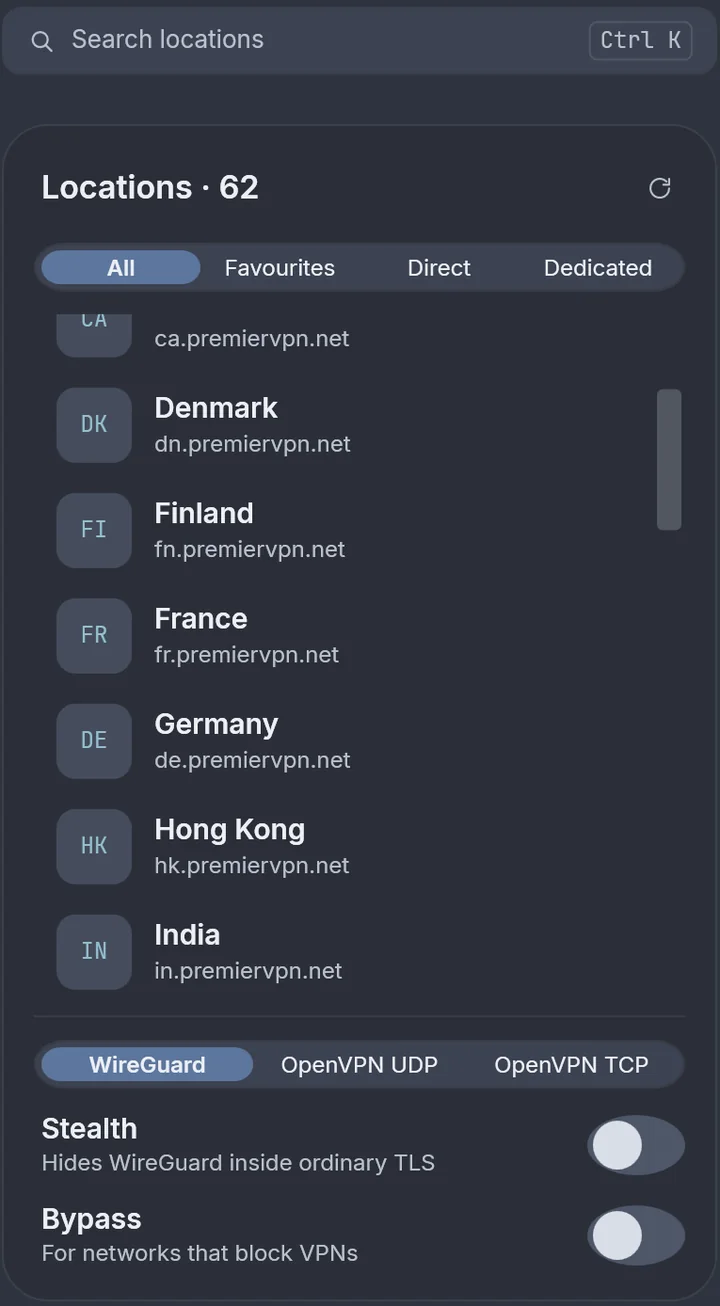
Search at the top of the list (Ctrl K), or use the tabs:

All
Every standard location.
Favourites
Locations you've starred. Click the star on any row to add it.
Direct
Connects to the server by its IP address instead of its premiervpn.net name, so no DNS lookup is needed. Use these when a network blocks or redirects our server names.
Dedicated
Your dedicated IPs, plus Add a dedicated IP. Dedicated IPs are always listed first.

Right-click a row for Connect and Copy hostname, and Remove on a dedicated IP you added yourself.

Tip

For the best speeds, pick a location near you. The Latency section can test every server and tell you which is fastest from where you are.

Locations panel with a search box, All, Favourites, Direct and Dedicated tabs, a list of countries, the WireGuard, OpenVPN UDP and OpenVPN TCP switch, and Stealth and Bypass switches
Locations
6 Protocols

Choose how you connect

The protocol switch sits under the Locations list. Your choice applies the next time you connect. Default Protocol in Settings decides which one is selected when you sign in.

WireGuard
Everyday use; the fastest. ChaCha20-Poly1305 encryption.
+ Stealth
Networks that block or slow down VPNs, such as hotels, offices and some countries. Turn on the Stealth switch under the protocol picker (WireGuard only). It wraps WireGuard in TLS on port 993, so it looks like ordinary encrypted traffic.
OpenVPN UDP
Fast and widely compatible. AES-256-GCM encryption.
OpenVPN TCP
Unreliable or restrictive networks. Slower than UDP, but more reliable.

When Bypass is on (next step), the protocol switch is greyed out, because Bypass chooses how to connect.

7 Bypass mode

Get through networks that block VPNs

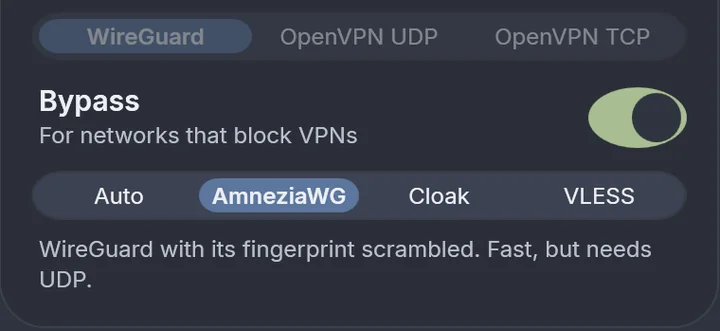
If WireGuard, Stealth and OpenVPN are all blocked, turn on the Bypass switch under the protocol picker. The app then connects with a transport built to get past censorship. Choose one in the second picker:

Auto
Recommended. Tries AmneziaWG, then Cloak, then VLESS until one gets through. Not every server offers every method, and Auto skips the ones that aren't available.
AmneziaWG
WireGuard with its traffic pattern scrambled so it isn't recognised. Fast, but needs UDP. For networks that block WireGuard by its fingerprint.
Cloak
OpenVPN disguised as normal HTTPS on port 4443 (TCP). For networks that block UDP entirely.
VLESS
VLESS with REALITY, xHTTP or CDN. For the most heavily censored networks. Works differently: see below.

If a normal connection fails, the error banner offers Try Bypass. That turns Bypass on, set to Auto, and tries again.

VLESS protects your browser, not your whole PC

VLESS sets the Windows proxy instead of creating a VPN tunnel. Browsers and apps that use the Windows proxy go through it; games and many other apps don't, and the kill switch doesn't apply. The Overview shows Proxy only while it's in use.

With VLESS selected, the Locations list switches to your VLESS servers, with tabs for All, REALITY, xHTTP and CDN. Each row shows the type, city and port, and you connect to exactly the server you pick. Turn VLESS off to get the normal list back.

Bypass switched on, with the Auto, AmneziaWG, Cloak and VLESS options and the protocol switch greyed out
Bypass · AmneziaWG selected
8 Security settings

Check your security settings

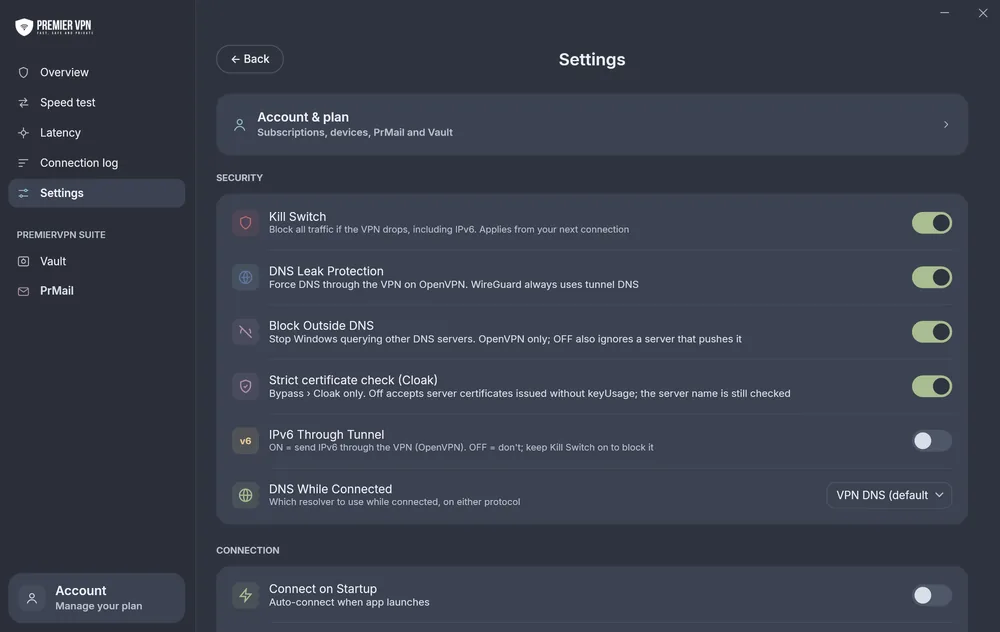
Open Settings in the sidebar (Ctrl 6). The defaults suit most people; here's what each one does.

Kill Switch
Blocks all internet traffic, IPv6 included, if the VPN drops, so nothing leaks. A change applies from your next connection. Keep it on.
DNS Leak Protection
Forces DNS through the VPN on OpenVPN. WireGuard always uses the VPN's DNS.
Block Outside DNS
Stops Windows sending DNS queries to other servers (OpenVPN only).
Strict cert check
For Bypass › Cloak only, and on by default. Turning it off accepts a server certificate issued without the keyUsage extension; the server name is still checked. Only change this if support asks you to.
IPv6 Through Tunnel
On: IPv6 goes through the VPN (OpenVPN). Off: it doesn't, so keep the kill switch on to block it.
DNS While Connected
Which DNS resolver to use while connected: VPN DNS (the default), Cloudflare, Google or Quad9.
Settings, Security section: Kill Switch, DNS Leak Protection, Block Outside DNS, Strict certificate check for Cloak, IPv6 Through Tunnel and DNS While Connected
Settings · Security
9 Connection & general

Make it work the way you like

Connect on Startup
Connects automatically when the app opens.
Auto Reconnect
If the connection drops, reconnects to the same server, up to three tries.
Default Protocol
The protocol selected when you sign in: WireGuard, OpenVPN UDP or OpenVPN TCP.
Stealth Mode
The same as the Stealth switch under the protocol picker (WireGuard only).
VPN Credentials
Sign in with your VPN username and password instead of your account (see step 3).
Repair Adapter
Repair Network Adapter reinstalls the network driver if connections keep failing.
System Tray
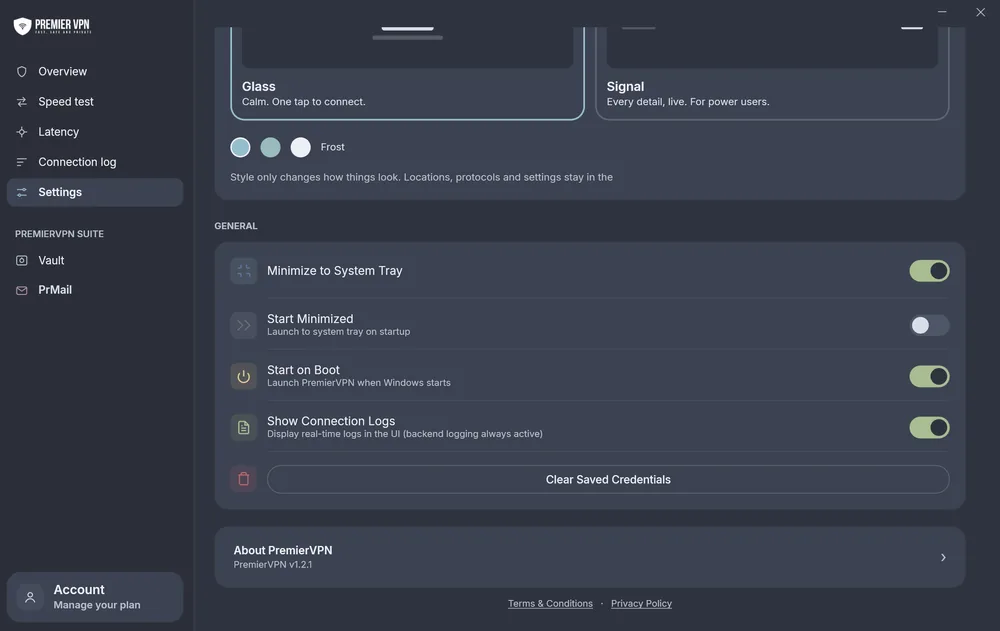
Minimize to System Tray on: closing or minimising keeps the app, and the VPN, running in the tray. Off: closing quits.
Start options
Start on Boot opens PremierVPN when Windows starts. Start Minimized opens it straight to the tray.
Connection Logs
Show Connection Logs shows the live log in the app. The app always keeps a log file either way.
Clear Credentials
Clear Saved Credentials disconnects, forgets your saved sign-in and signs you out.

Tip

Turn on Start on Boot, Start Minimized and Connect on Startup together, and you're protected from the moment you log in to Windows.

Settings, General section: Minimize to System Tray, Start Minimized, Start on Boot, Show Connection Logs and Clear Saved Credentials
Settings · General
10 Glass or Signal

Pick the look you prefer

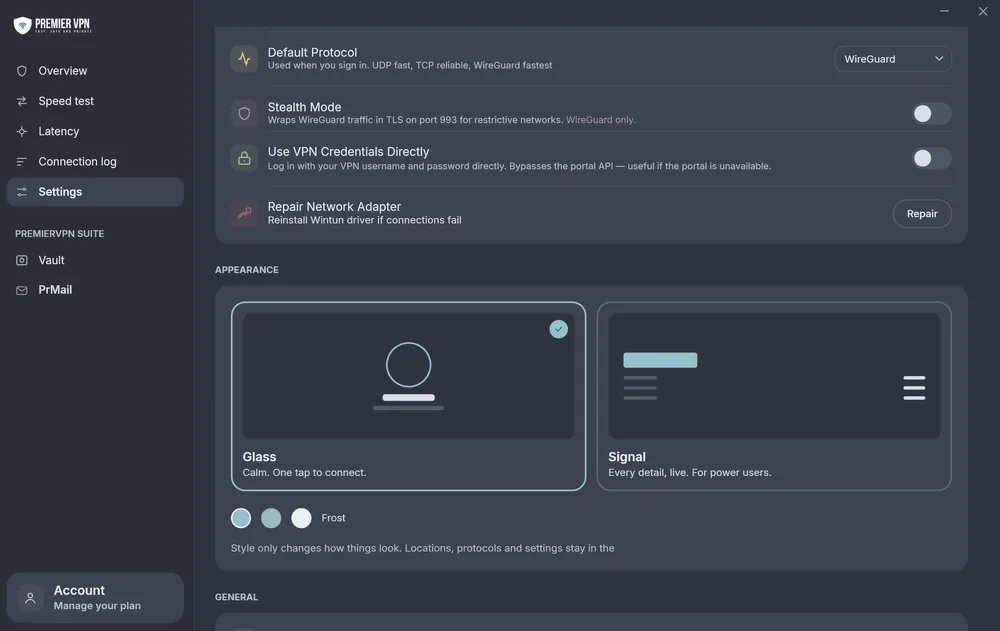
Go to Settings › Appearance. Both styles have exactly the same features; the change is instant and remembered. You can also pick an accent colour: Frost (the default), Teal or Snow. The app is always dark.

Glass (default)
Signal
Feel
GlassCalm and visual
SignalData-dense, like a control room
Navigation
GlassSidebar on the left
SignalTabs across the top bar
Connecting
GlassLarge round button with a labelled button under it
SignalBig status word, with Connect in the top bar
Disconnecting
GlassOne click
SignalPress and hold for about a second, so it can't happen by accident
Status words
GlassNot protected · Protected
SignalExposed · Connecting · Secure · Rerouting · Blocked
Extras
GlassSpeed tiles under the button
SignalA sentence saying where your traffic exits, a live data list, a 5-minute throughput chart and the session log

In Signal, the tabs are named ALL, FAV, DIRECT and OWN IP, and your account is under Settings › Account & plan.

Settings, Appearance section with the Glass and Signal styles and accent colours, below Default Protocol, Stealth Mode, Use VPN Credentials Directly and Repair Network Adapter
Settings · Appearance
11 Tray & shortcuts

Use it from the system tray

The PremierVPN icon in the system tray changes with your connection (connected, connecting, not connected or error) and matches a light or dark taskbar.

  • Click the icon (left or right) to open the tray panel: your status, a list of locations (click one to connect), Connect or Disconnect, and Open PremierVPN, Settings and Quit. Click anywhere else to close it.
  • Double-click the icon to open the main window.
  • When you're signed out, the panel only offers Open and Quit.

Keyboard shortcuts

Ctrl 1
Overview
Ctrl 2
Speed test
Ctrl 3
Latency
Ctrl 4
Connection log
Ctrl 5
Vault
Ctrl 6
Settings
Ctrl K
Search locations
Enter
Connect to the selected location
The rest of the app

Speed test, Vault and more

Speed test

Measures download, upload and latency through the VPN, and keeps a history. Connect first.

Latency

Click Scan All Servers to ping every server and see latency, packet loss and the best server for you.

Connection log

A live technical log of the connection. Handy for troubleshooting, or to send to support.

Vault

Encrypted file storage, unlocked with its own vault password. Files are encrypted on your PC before they're uploaded. About Vault

PrMail

Opens PrMail, our private email. About PrMail

Account

The card at the bottom of the sidebar: your plan, renewal date, payment method, VPN username, sessions, Vault usage and dedicated IPs, with quick links to manage them on our website.

Troubleshooting

Something not working?

I can't connect
  1. Check your internet works with the VPN off.
  2. Try a different location, or the same country from the Direct tab.
  3. Switch protocol: try OpenVPN TCP, or WireGuard with Stealth on.
  4. Turn on Bypass, set to Auto, or click Try Bypass on the error banner.
  5. Go to Settings and click Repair Network Adapter.

Still stuck? Open the Connection log (Ctrl 4) and send it to support.

It says I don't have an active plan

Connecting is blocked until your account has an active VPN plan. Follow the message in the app to checkout, or renew in the portal. Just subscribed? Give it a moment, then try again.

I can't sign in

Use the same email and password as portal.premiervpn.net, and check you can log in there first. If you use two-factor authentication, enter the current code from your authenticator app.

Forgotten your password? Click Forgot password? in the app, or reset it here. If you signed up with Google or Apple, set a password in the portal under Settings first. If our website is down, tick Use VPN credentials directly and sign in with your VPN username and password.

Some apps or games don't go through the VPN

You're probably using Bypass › VLESS, which shows Proxy only. VLESS only covers browsers and apps that use the Windows proxy, and the kill switch doesn't apply. For full-PC protection, choose Auto, AmneziaWG or Cloak, or turn Bypass off.

I have no internet after the VPN dropped

That's the kill switch doing its job: it blocks traffic while you're not protected, so nothing leaks. Connect again, or click Disconnect in the app to go back to your normal connection.

If you still have no internet after disconnecting, open the app, go to Settings and click Repair Network Adapter, then contact support.

The VPN keeps dropping

Turn on Auto Reconnect in Settings, and keep the kill switch on so nothing leaks in between. On hotel, office or other restricted Wi-Fi, try Stealth or Bypass.

My connection is slow

Use WireGuard where you can; it's the fastest. Open Latency and click Scan All Servers to find the best server near you, then check it with the Speed test.

My data usage figures look too high

Usage counting was fixed in version 1.2.1. Totals recorded by earlier versions may be too high; figures from now on are accurate.

Does the app have split tunnelling or a light theme?

Not in this version. Split tunnelling, multi-hop and a light theme aren't available yet.

How do I uninstall PremierVPN?

Open Windows Settings → Apps → Installed apps, find PremierVPN, click the … menu and choose Uninstall.

I need more help

In the app, go to Settings › Support for the Help Centre, a contact form and our support email. You can also visit the Support & Help Centre or open a support ticket. Include your Windows version, the protocol you used and the connection log. Our support team is UK-based and available 24/7.

Ready to get started?

Download PremierVPN for Windows and you're one click from protected.

ARM64 version · What's new

Stay Ahead of Online Threats

Get VPN tips, security insights, and exclusive offers delivered straight to your inbox. No spam — just the essentials.

Unsubscribe at any time. We respect your privacy.

PremierVPN Support