8 min read
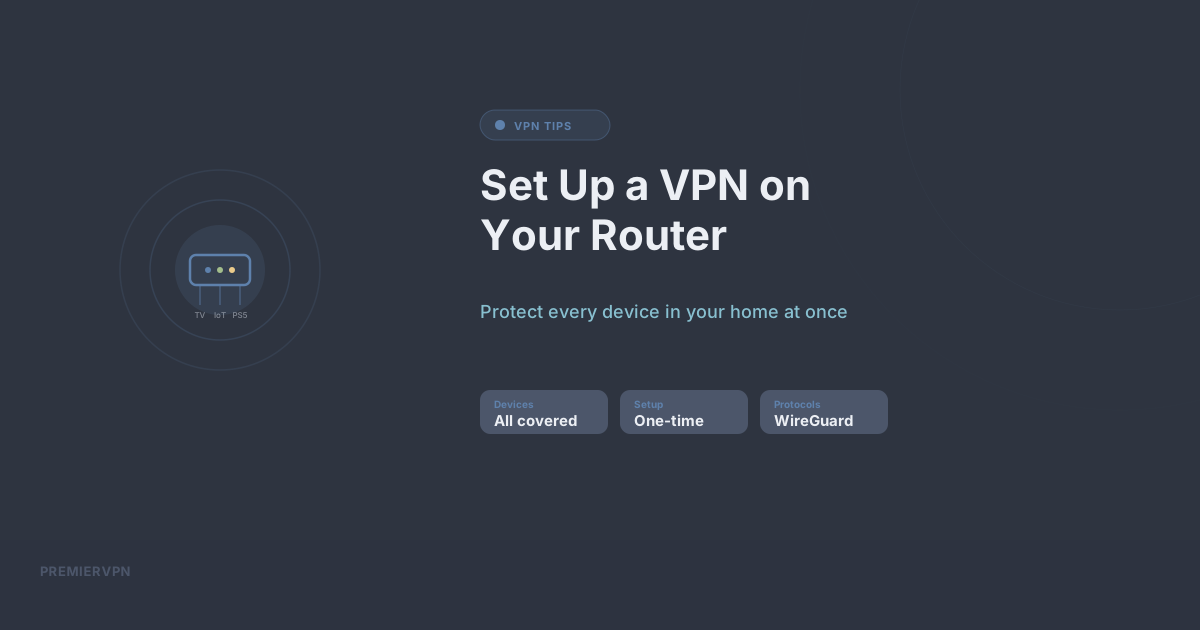
Installing a VPN app on your phone and laptop is straightforward. But what about your smart TV? Your PlayStation? Your IoT thermostat? These devices can't run VPN apps — but they can be protected if your router is running the VPN.
Why Install a VPN on Your Router?
- Protect every device — anything connected to your Wi-Fi is automatically protected
- No per-device setup — set it up once on the router and forget about it
- Cover devices that can't run VPN apps — smart TVs, consoles, IoT devices, Chromecast, Apple TV
- Counts as one connection — your router uses a single VPN connection regardless of how many devices are online
What You Need
Not all routers support VPN clients. You need a router running firmware that supports WireGuard or OpenVPN. Compatible options include:
- ASUS routers (most models with ASUSWRT) — native WireGuard support on newer models
- GL.iNet travel routers — excellent WireGuard support out of the box
- Routers flashed with OpenWrt — full WireGuard and OpenVPN support
- Routers flashed with DD-WRT — OpenVPN support, some WireGuard support
- Vilfo routers — purpose-built VPN routers with split tunnelling
Your ISP-provided router (BT Hub, Virgin Hub, Sky Q Hub) typically cannot run VPN clients. You'll need your own router.
Step-by-Step: WireGuard on ASUS Router
- Log into your PremierVPN portal and go to your VPN credentials
- Download your WireGuard configuration file for your preferred server
- Log into your ASUS router admin panel (usually 192.168.1.1)
- Navigate to VPN → VPN Client → WireGuard
- Import the configuration file you downloaded
- Click "Apply" and then "Activate"
- Check the connection status — it should show "Connected"
Step-by-Step: GL.iNet Travel Router
- Connect to your GL.iNet router's admin panel (usually 192.168.8.1)
- Go to VPN → WireGuard Client
- Click "Add a New WireGuard Configuration"
- Upload your PremierVPN WireGuard config file
- Click "Connect"
GL.iNet routers are particularly good for travel — they're pocket-sized and can connect to hotel Wi-Fi while running your VPN.
Important Considerations
Speed: Your router's processor handles all the VPN encryption. Cheaper routers may bottleneck your speed. WireGuard is far less CPU-intensive than OpenVPN, so always use WireGuard if your router supports it.
Split tunnelling: Some router firmware lets you choose which devices go through the VPN and which don't. This is useful if you want your work laptop on the VPN but your smart TV on a direct connection.
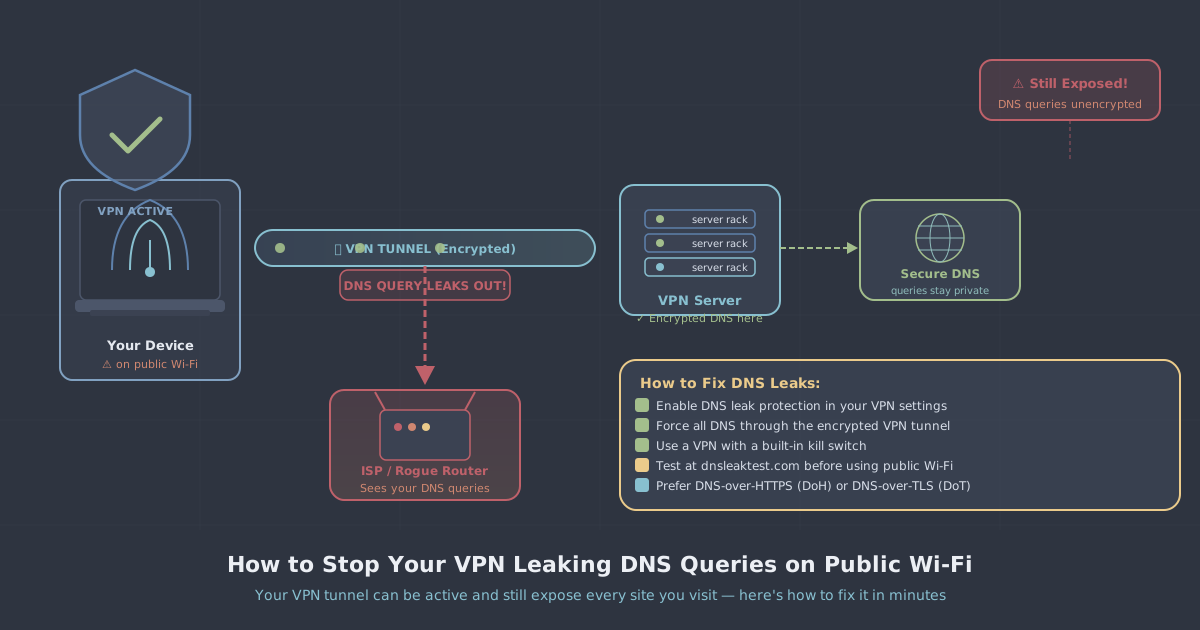
DNS: Make sure your router's DNS settings point to PremierVPN's DNS servers (shown in your config file), not your ISP's. Otherwise you'll have a DNS leak.
The Result
Once configured, every device on your network — phones, laptops, tablets, smart TVs, game consoles, IoT devices — is automatically protected. No apps to install, no connections to manage, no devices left exposed.